
Connect Amazon Web Services
Connect an AWS account so Proofline can read infrastructure evidence through a role you create in that account.
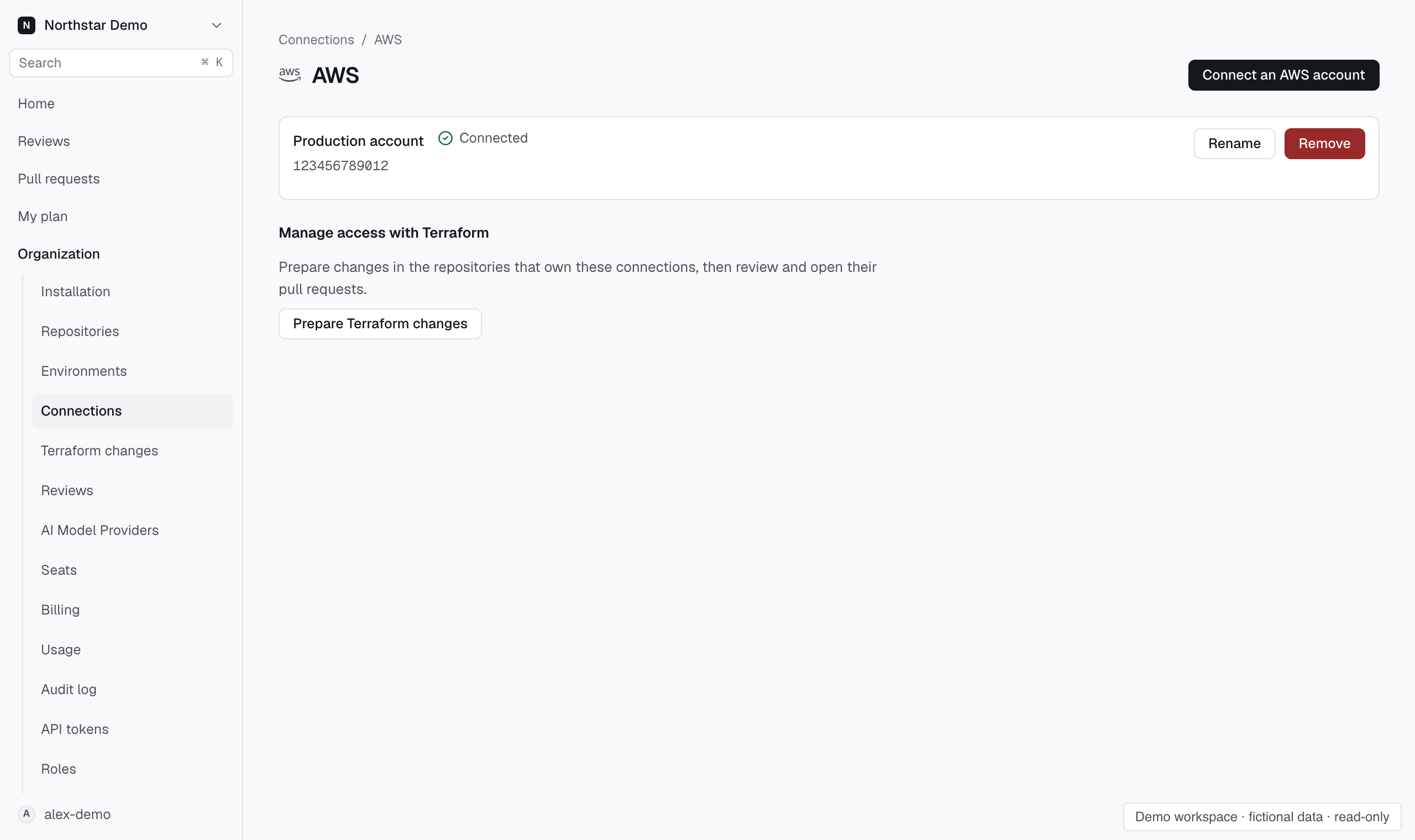
Start the connection#
- Open Organization → Connections and find AWS connections.
- Start a connection and give it a recognizable name.
- Choose an installation method.
- Follow the CloudFormation flow or use your own infrastructure tooling.
Review the supplied role template before applying it. Use the trust information provided for this connection, including its external ID.
Create the role#
Choose AWS console (CloudFormation) if you can create IAM roles from the AWS console. Launch the supplied stack, acknowledge the IAM capability, and create it.
Choose Our own infrastructure code if your organization creates roles through Terraform or another deployment process. Copy the Terraform block from Proofline, or use the supplied role template.
Use the role name, trusted principal, and external ID shown for this connection. The trust policy must allow that principal to call sts:AssumeRole with that external ID. Include every statement of the template's permission policy.
Apply the change before confirming that it ran. A successful Terraform plan does not create the role.
Proofline verifies the connection by assuming the role. This check does not establish that every required permission is present. Missing permissions can fail later when Proofline collects evidence.
Verify the role#
Enter the AWS account ID or role ARN and select Confirm. CloudFormation shows the role ARN in its RoleArn output.
If your infrastructure change has not run yet, Proofline can keep checking while you wait for it. Once it runs, select I applied it to check promptly.
The connection page shows the last verification result and when Proofline checked it. Open Connection instructions to inspect the role values or confirm a different account.
If verification fails, check the role name, trusted principal, external ID, and permission policy against the supplied template. If Proofline stops checking, correct the setup and select Check again.
A pending connection is not usable. Use Discard connection setup for an unconfirmed connection you no longer need.
Connect the evidence to an environment#
Open the environment's Setup page and use Add under AWS accounts. Select a connected account, set its region and resource scope, and select Link account.
To connect a new account from this page, select Connect an AWS account. Proofline opens its connection page. Pending accounts in the list open that page too. Once the account connects, configure its scope and link it.
Inspect Evidence to confirm which sources are available.
An account connection grants the configured infrastructure access. It does not establish that every service or database is covered.