
Manage review rules
Review rules tell Proofline what to check. Scope a rule to an organization, environment, or repository, then choose which files it applies to.
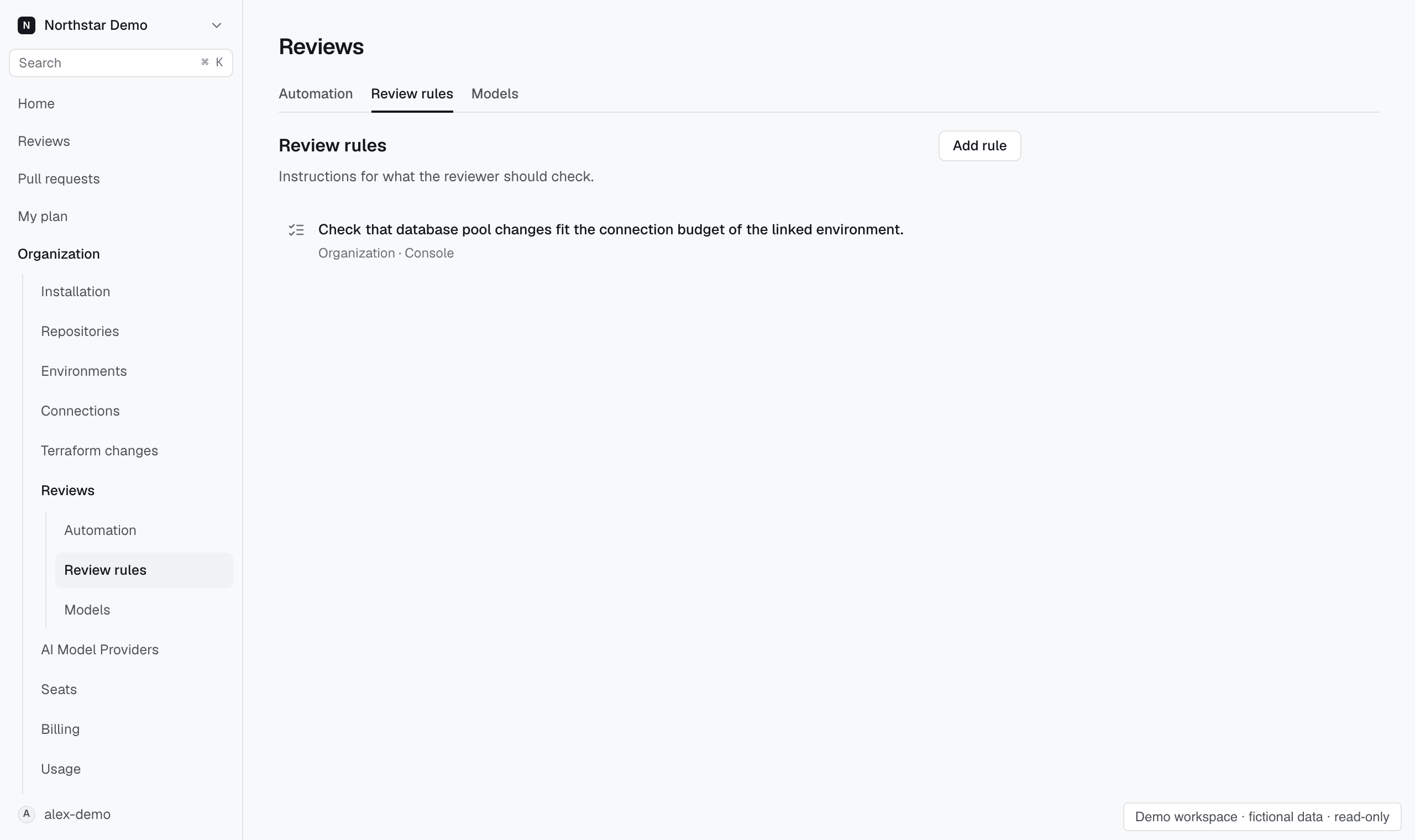
Write a rule#
- Open Organization → Reviews → Review rules and start a rule.
- Enter a Rule key and choose its scope.
- In Rule text, describe what the reviewer should check.
- Open Matching files if the instruction applies to specific paths or languages.
- Select Save rule.
Write a focused instruction with enough context to assess it. For example: “Check that changes to database pool size fit the connection budget of the linked environment.”
Choose matching files#
Enter one gitignore pattern per line in Path globs. Negation is not supported. An empty list applies the instruction to every path.
Choose languages when the instruction is language-specific. With no language selected, it applies to every language. Both path and language conditions must match.
These conditions select where the instruction applies. They do not exclude files from review.
Manage inheritance#
The same rule key connects an inherited rule with its override. An organization administrator can select Prevent environment and repository overrides.
Use Disable this rule when the instruction should stop applying. Check the effective scope before saving.
If another session changes the rule, Proofline preserves your draft. Reload saved rule replaces that draft with the current saved rule.