
Manage credits and billing
Open Organization → Billing to manage the organization's subscription and its credit balance.
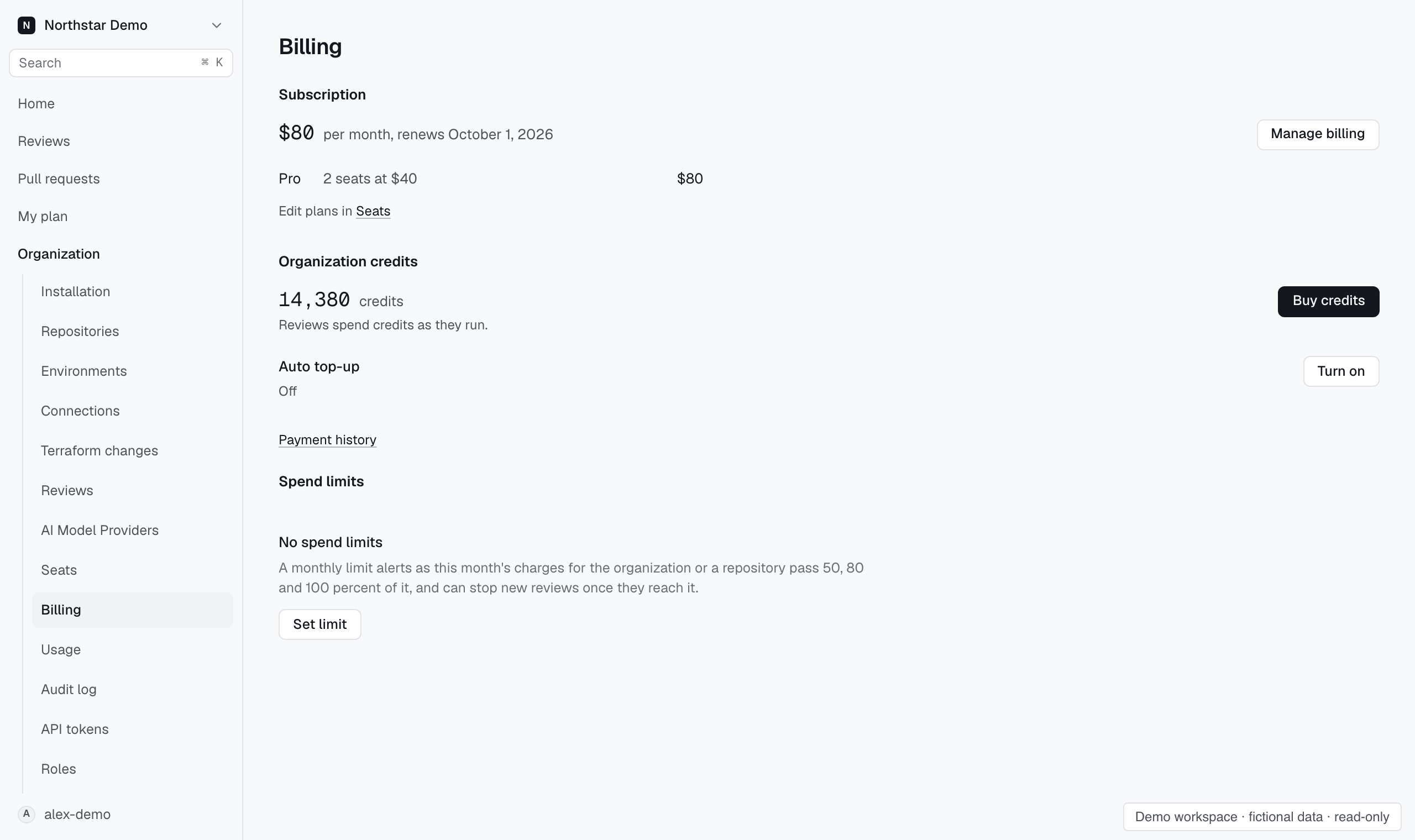
Subscribe to a plan#
Under Subscription, select Subscribe, choose the plan every assigned seat starts on, and select Continue to payment to pay in Stripe. Every plan uses the same models; larger plans include more credits per seat each month. You pay for one seat per assigned seat, so assign at least one seat in Seats before you subscribe. The first payment covers the rest of the current month, and the plan renews on the 1st.
After you subscribe, Subscription shows the monthly total, the renewal date and the number of seats on each plan. Each person can be on a different plan. Follow Edit plans in Seats to change them; see Assign seats and plans.
Manage billing#
Select Manage billing to open Stripe, where you change the card, billing address, email or tax ID, read invoices or cancel. A cancelled plan stays active until the end of the month. If a payment fails, Billing says so; update the card in Stripe and Stripe retries the payment.
Download invoices and receipts#
Select Payment history at the bottom of Billing to list every payment, newest first: credit purchases, automatic top-ups, plan renewals and seat changes. Each row shows the date, what the payment was for, the total with tax, and whether it is paid.
- Select Invoice to download the invoice as a PDF.
- Select Receipt to open Stripe's page for a paid invoice, where you download the receipt.
Payment history is shown to organization administrators.
Understand the balance#
Organization credits is the balance the organization bought or was granted. A person's plan pays for reviews of their pull requests first, and those reviews leave the balance alone. The balance pays for:
- reviews for people who have no plan;
- reviews for a person who has used up their plan's credits, when their seat allows organization credits.
When the balance runs out, those reviews do not start. Reviews already running finish normally.
Reviews on your own provider keys use no credits and run at any balance. Usage still shows their cost, and the maximum credits per review still applies.
Buy credits#
- Select Buy credits.
- Choose one of the amounts, or choose Custom and enter the number of credits.
- Select Continue to payment and complete checkout in Stripe.
The dialog shows the price of each amount and the smallest and largest custom amount.
Prices exclude tax. Checkout adds tax where it applies and accepts your business tax ID. Stripe emails the invoice and receipt, and both stay available in Payment history.
After checkout, Proofline waits for payment confirmation before adding credits. If the balance has not changed yet, use Reload billing to check again.
Configure automatic top-up#
Auto top-up buys credits when the balance drops below a number you choose. It needs a saved card, which your first payment in Stripe stores.
- Under Auto top-up, select Turn on.
- Enter the balance that triggers a top-up.
- Enter the credits each top-up adds.
- Select Turn on.
Select Edit to change either number, or Turn off to stop.
Each top-up is charged to the saved card, with tax and an invoice like a manual purchase. If a charge is declined, auto top-up turns itself off; update the card in Manage billing and turn it on again.
Set spend limits#
Under Spend limits, an organization administrator sets a monthly credit limit for the whole organization or for one repository. A repository's limit counts its pull request and local patch reviews.
When reached chooses what the limit does. With Stop new reviews, once this month's charges reach the limit, new reviews in its scope do not start and show as incomplete with the limit that stopped them. Reviews already running finish. Raise or remove the limit to review again this month. With Alert only, reviews continue.
Either way, Billing shows the day this month's charges passed 50, 80 and 100 percent of the limit, and the audit log records each crossing. Changing a limit's size starts its alerts again.
Investigate consumption#
Open Organization → Usage to inspect this month’s spending by person and repository. Compare it with seat plans and review limits before changing your automation settings.