
Add documents to repository reviews
Pin a Confluence, Notion, or Google Docs page to repository paths so reviews can read it when a change touches those paths.
You need write access to the repository and an active document connection. The page must be within that connection's allowed space, root page, database, or folder.
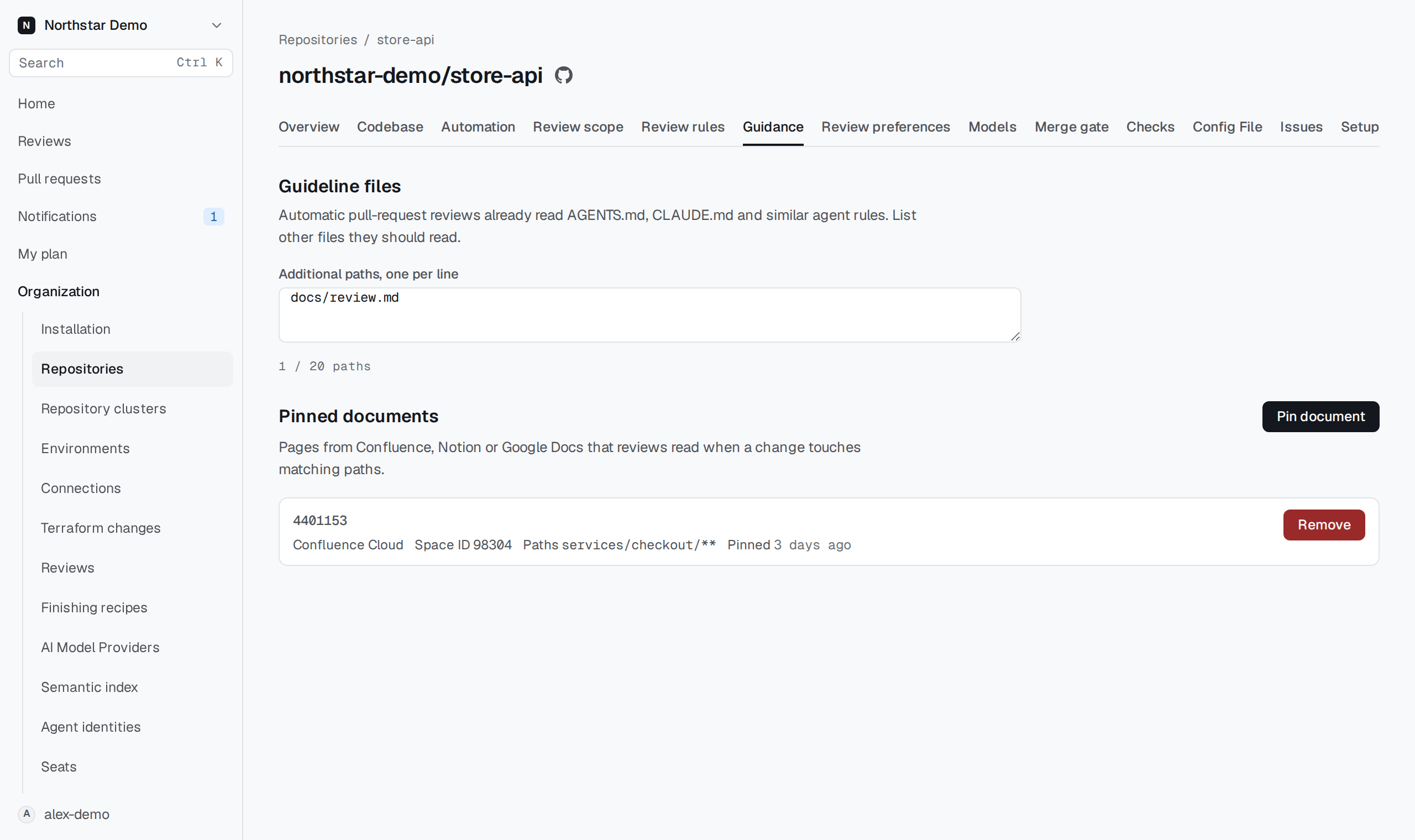
Pin a page#
- Open Organization → Repositories and select the repository.
- Open Guidance and find Pinned documents.
- Select Pin document.
- Choose the Connection and its allowed space, root, or folder.
- Enter the document's Page ID.
- Enter a pattern in Repository paths, such as
services/billing/**. - Select Pin document to save it.
For example, pin the billing design document to services/billing/**. A review that changes files under that path can read the page as context.
The connection picker includes active document connections. If none are available, select Open connections to set one up.
Check what the review used#
A pin selects a page for matching changes. It does not copy the document into the repository or make every review read it.
Inspect the review's recorded evidence and limitations before relying on a document. Provider access, a changed connection, or an unavailable page can prevent a read. A pin does not establish facts about deployed infrastructure.
Remove a pin#
Use Remove beside the pinned document, then confirm Remove in the Remove pinned document? dialog. The removal stops future use of that pin and preserves its recorded history.
To change the page or path pattern, remove the old pin and create another with the intended values.