
Approve or reject a configuration change from a coding agent
A coding agent cannot apply a sensitive change to your organization's settings. It proposes the change and gives you an approval link, and the setting stays as it is until an organization administrator approves that exact change in the browser.
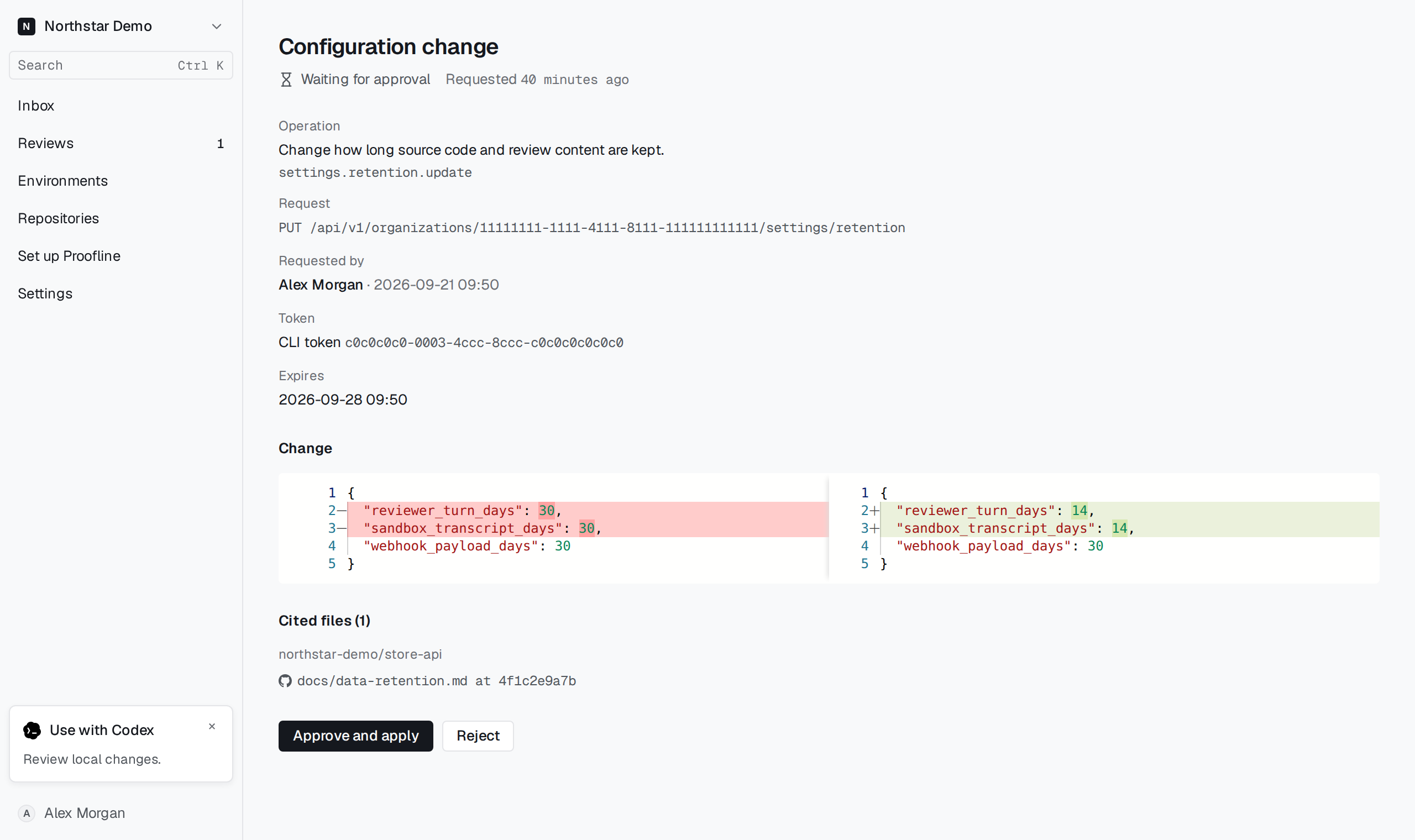
Before you start#
- You are an organization administrator.
- You signed in to Proofline in your browser within the last 24 hours. An older sign-in can read the change but cannot approve it.
Open the change#
Open the approval link the agent gave you. It opens the Configuration change page, which shows Waiting for approval while the change is pending.
You can also start from Installation. Next steps lists each pending change as Confirm a configuration change, with the operation and whose agent proposed it. Select Review change to open the change in a conversation.
Check what the agent proposed#
The agent wrote the proposal, so read it as a request, not as a description you can rely on. Check each part before you decide:
- Read Operation and Request to see which setting the change targets.
- Read Requested by and Token to see whose agent proposed it and through which sign-in. A change that Proofline's setup conversation proposed shows Through: The setup conversation instead of a token.
- Compare the two sides under Change. The left side holds the values the agent read and the right side the values it requests. When the request sets some fields of a setting, the left side shows only those fields. A request that sends no values, such as a removal, shows the configuration it acts on instead.
- Open each link under Cited files. These are the repository files the agent read to choose a value, each at the exact commit it read. A change with no cited files has no such section.
- Note Expires. A change that nobody decides by then closes without applying.
In the Installation conversation the same change appears as a card: the request, each field it changes, and the cited files under Read from.
Approve or reject#
- Approve and apply applies the change with your administrator session, through the same checks as the setting's own console page. The page then shows Approved by with your name. Under Return to your coding agent, it tells you to ask the agent to continue; the agent reads the result from Proofline. In the Installation conversation this button is Confirm change.
- Reject closes the change, and the setting keeps its value. The page shows Rejected by with your name. To get a different change, ask the agent to propose one.
A decision is final. An approved, rejected or expired change shows its outcome and no buttons. The audit log records who approved or rejected each change.
When you cannot approve#
Sign in again to approve this change. Your sign-in is older than 24 hours. Nothing was applied. Select Sign in again, then approve the change when the page returns. In the Installation conversation, Confirm change is unavailable until you sign in again.
The configuration changed after the agent proposed this change. The page shows Configuration moved and no buttons, because Proofline applies a change only to the configuration the agent read. Ask the agent to read the configuration again and propose a new change.
This change expired. Nobody approved or rejected it in time. Ask the agent to propose it again.
Only an administrator can approve this change. You are signed in with an account that does not administer the organization, so the page shows nothing about the change. Ask an administrator to open the link, or select Sign in again and use an administrator's GitHub account.
Configuration change not found. The organization has no change at this link. Check that the agent proposed it in this organization and that the link is complete.