
Schedule latent-risk scans
A latent-risk scan looks for problems that already exist in an environment's infrastructure, such as a database port open to the internet. It reads the infrastructure evidence Proofline has already collected and examines no change. It never comments on a pull request or affects a gate.
Open the environment and select Latent risks to see its existing problems, schedules and recent scans.
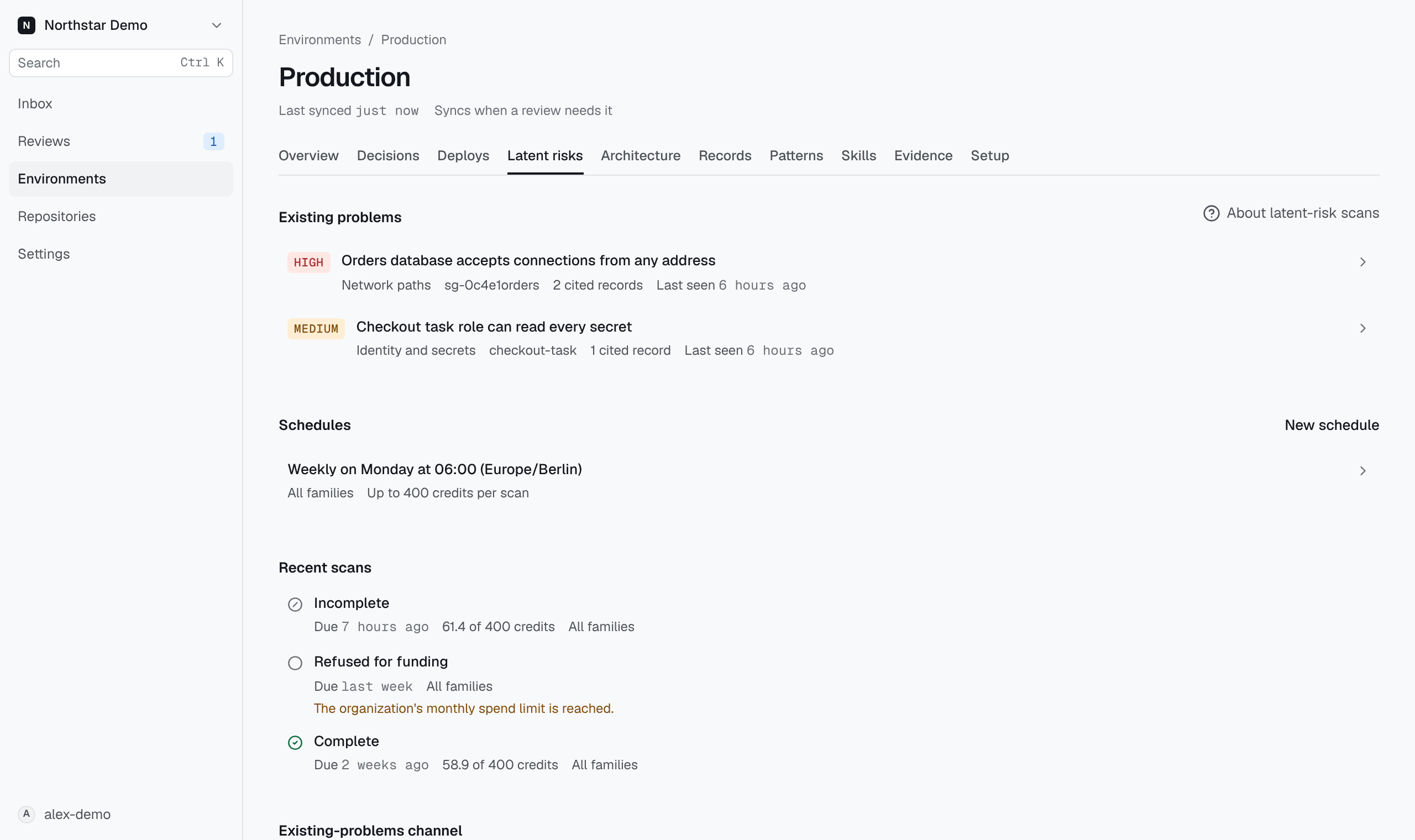
Create a schedule#
You need to be an administrator of the organization in GitHub. Every scan spends the organization's credits, so Proofline administrators cannot change schedules.
- On Latent risks, select New schedule.
- Under Families, keep the kinds of problem each scan examines.
- Choose Weekly or Nightly. A weekly schedule also needs a Weekday.
- Set the Time and the Time zone, such as
Europe/Berlin. - Enter the Credit ceiling per scan. A scan stops when its next model request would exceed this ceiling.
- Select Create schedule.
If Proofline refuses a value, the reason appears under that field.
Proofline does not collect certificates or service quotas yet. Scans that include Certificate expiry or Quotas end as incomplete for those families.
Change, disable or delete a schedule#
Select the schedule on Latent risks. Change its fields and select Save schedule. Clear Run this schedule to stop scans and keep the settings.
Delete schedule asks for confirmation. Recorded scans and existing problems stay after you delete a schedule.
Read recent scans#
Each scan shows its outcome:
- Complete: every family was examined without a gap. Other problems can still exist.
- Incomplete: at least one family has a gap or was not examined.
- Running: the scan has not recorded a result yet.
- Deferred: the schedule's previous scan was still running, so nothing started.
- Refused for funding: the organization's spend limit refused the scan, so nothing started. The reason appears under the outcome. Check usage and billing, then wait for the next scheduled time.
A finished scan also lists any evidence gap and the families it did not examine. Select Families under the scan to see each family's details:
- whether the scan examined it
- its model requests and queries
- the number of problems it reported
- any gap
Review existing problems#
Existing problems lists what scans found, newest first. Each problem shows its severity, family and the resource it cites. Select a problem to see its explanation and the evidence records it cites.
An empty list means no scan reported a problem. It does not establish that the environment has none.
Post new problems to Slack#
Proofline can post each new existing problem once to a Slack channel. The channel applies to every environment in the organization. Connect Slack first and invite the Proofline app to the channel.
- On Latent risks, find Existing-problems channel.
- Enter the Slack channel ID, such as
C0123456789. - Select Save channel.
Select Stop posting to clear the channel. Members who are not administrators see the channel but cannot change it.