
Link an AWS account to an environment
An environment reads an AWS account only after you link the account to it and say what Proofline reads there: the region, and the ECS clusters and services the environment deploys to. Each environment links its accounts separately, because one AWS account often holds both staging and production.
Before you start#
- Connect the account first in Settings → Connections → AWS. See Connect Amazon Web Services. An account that is not connected yet shows Finish connecting this account before configuring its environment scope.
- You need to be an organization administrator. Other members see the page without being able to change it.
Link the account#
- Open the environment, then Setup → AWS accounts.
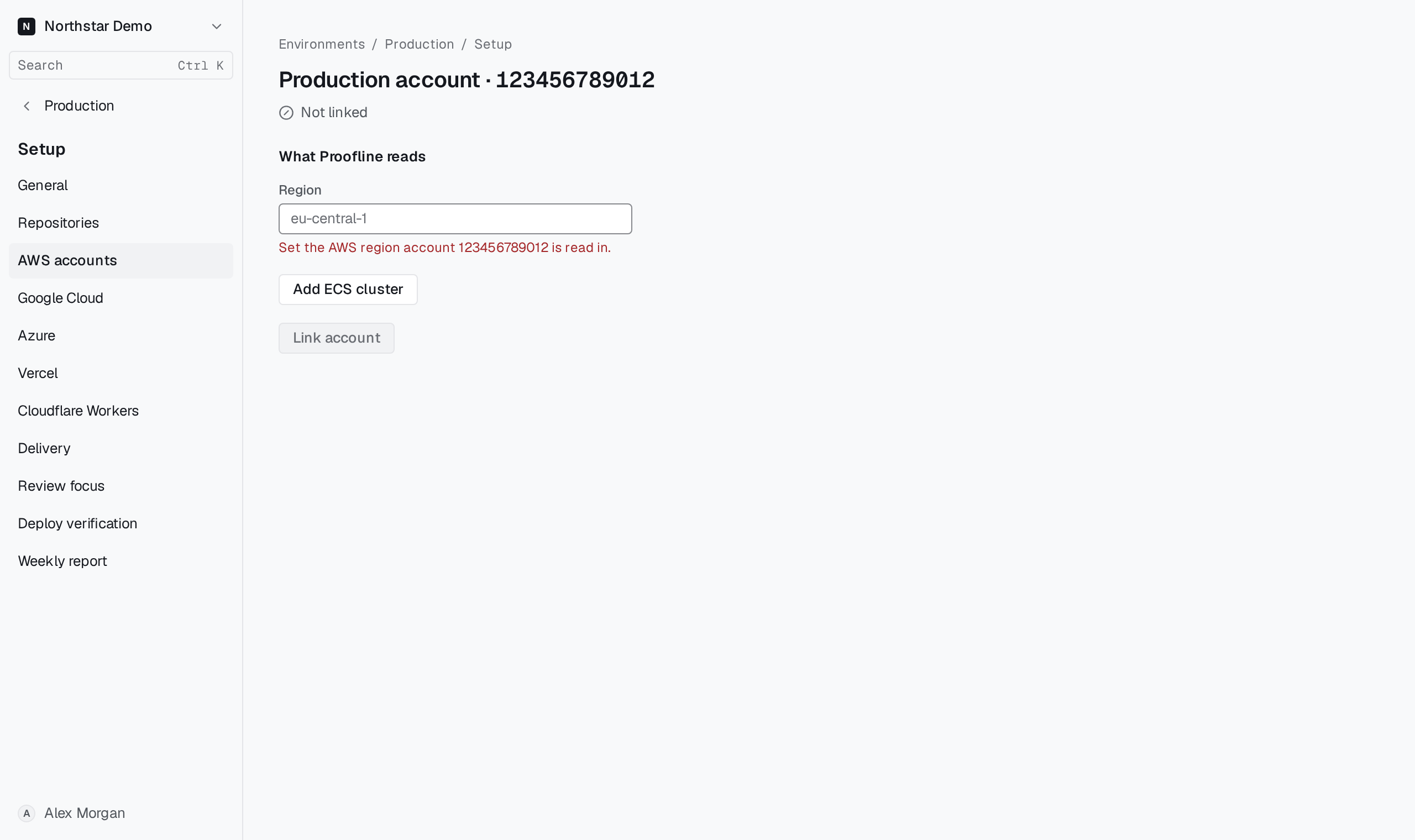
- Select Add and choose the account, or open an account the page already lists. An account not linked to this environment reads Not linked.
- Under What Proofline reads, enter the Region the account is read in, such as
eu-central-1. - Select Add ECS cluster for each cluster the environment deploys to. Enter its ECS cluster name and its Services, one per line.
- Under Containers built elsewhere, one per line, list containers a service runs that your repositories do not build, such as a metrics agent or a log router. Deploy checks still read them but do not expect them to match a commit.
- Under ECR repositories, one per line, list the repositories in this region that your builds push images to, such as
payments/api. When deploy checks cannot tie a running image to a commit, the page can suggest containers whose images come from any other repository for Containers built elsewhere, and services that run only such containers for removal from Services. It suggests nothing for a container or service the evidence leaves in doubt, or while you edit this list, the region or the clusters. - Select Link account.
If a value cannot be saved, the page says why beside the fields, for example when a region is not an AWS region name or a cluster is listed twice. List each cluster once, with all of its services.
The first link opens the AWS connection list. Return to the environment's Overview to see the account's inventory once Proofline has collected it. Turn on the production loop for AWS continues from here with alarms, deploy checks and scans.
Change or unlink the account#
Open the account from Setup → AWS accounts, change the region, the clusters and services or the ECR repositories, and select Save and re-run setup. When an environment reads one account in more than one region, choose the region to edit under Evidence region.
Select Unlink from this environment to stop the environment reading the account. The AWS connection stays in place for other environments; to remove it from Proofline, see Remove a connection.