
Schedule repository scans
A repository scan reads the repository's files at one commit, on a schedule or on demand: the default branch's commit, or for a tag schedule, the commit the pushed tag names. Analysis of those files is not available yet, so a scan reports no findings. A scan that listed every file at its commit and had files to read ends Failed, because none of its parts could be analyzed. A scan that could not list every file ends Incomplete. A scan whose files were all excluded has no parts to analyze, so it can end Completed, or Incomplete when it skipped files or environments. No scan status means the code is clean.
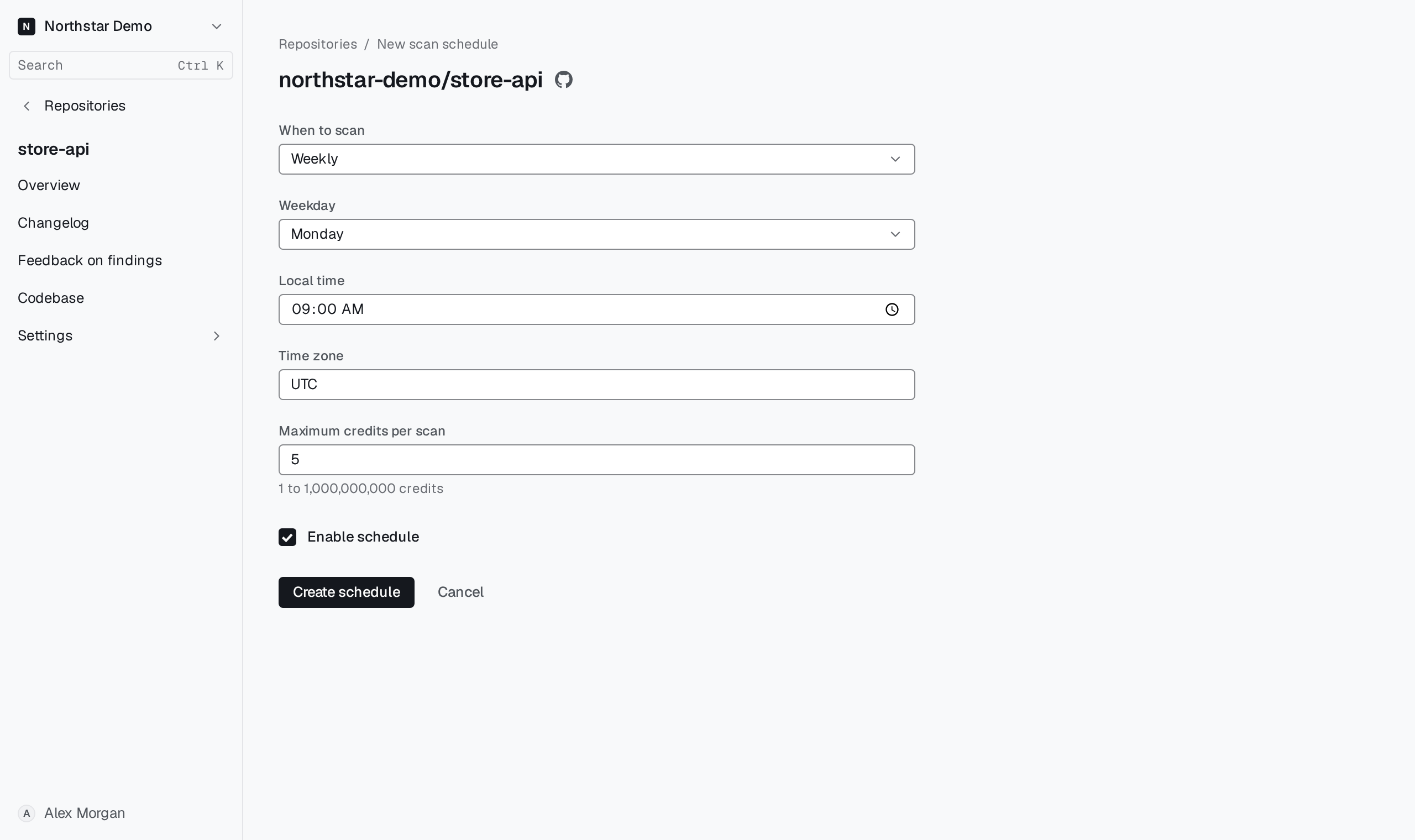
Schedule scans#
An organization administrator who can manage billing sets up scans, because a schedule decides when credits are spent. Other members can read the schedules.
- Open Repositories and select the repository.
- In the Scans section of its Overview, select Schedule scans.
- Under When to scan, choose Nightly, Weekly, After pushes to the default branch, On matching tags or On demand only.
- For a nightly or weekly scan, set the Local time and a Time zone such as
Europe/Berlin; a weekly scan also needs its Weekday. For tags, enter a Tag pattern such asv*. - Set Maximum credits per scan.
- Keep Enable schedule selected and select Create schedule.
On demand only never starts a scan by itself. The Scans section lists each schedule with its credit ceiling, whether it is enabled and when the next scan starts. A schedule starts no scan while the repository is disabled in Proofline or Proofline cannot reach it. Select a schedule to change it, or select Delete schedule to stop it; scans that already ran are kept.
Read a scan#
The Scans section also lists recent scans by commit, such as Scan 4f9c2d7, with their status. Select one to open it. Scans also appear in Reviews; search with type:scan to list them. A scan posts nothing to GitHub.
A failed or incomplete scan says why, such as how many of its parts did not complete, and names what it did not read at all, such as files too large to read, symbolic links and submodules.