
Download an SBOM
Proofline exports a software bill of materials (SBOM) in CycloneDX or SPDX format. An environment's SBOM lists the source dependencies of the commits the environment serves; a deployment review's SBOM lists those of the review's head commit. Both list what each commit's lockfiles and manifests declare. They do not describe the contents of a container image.
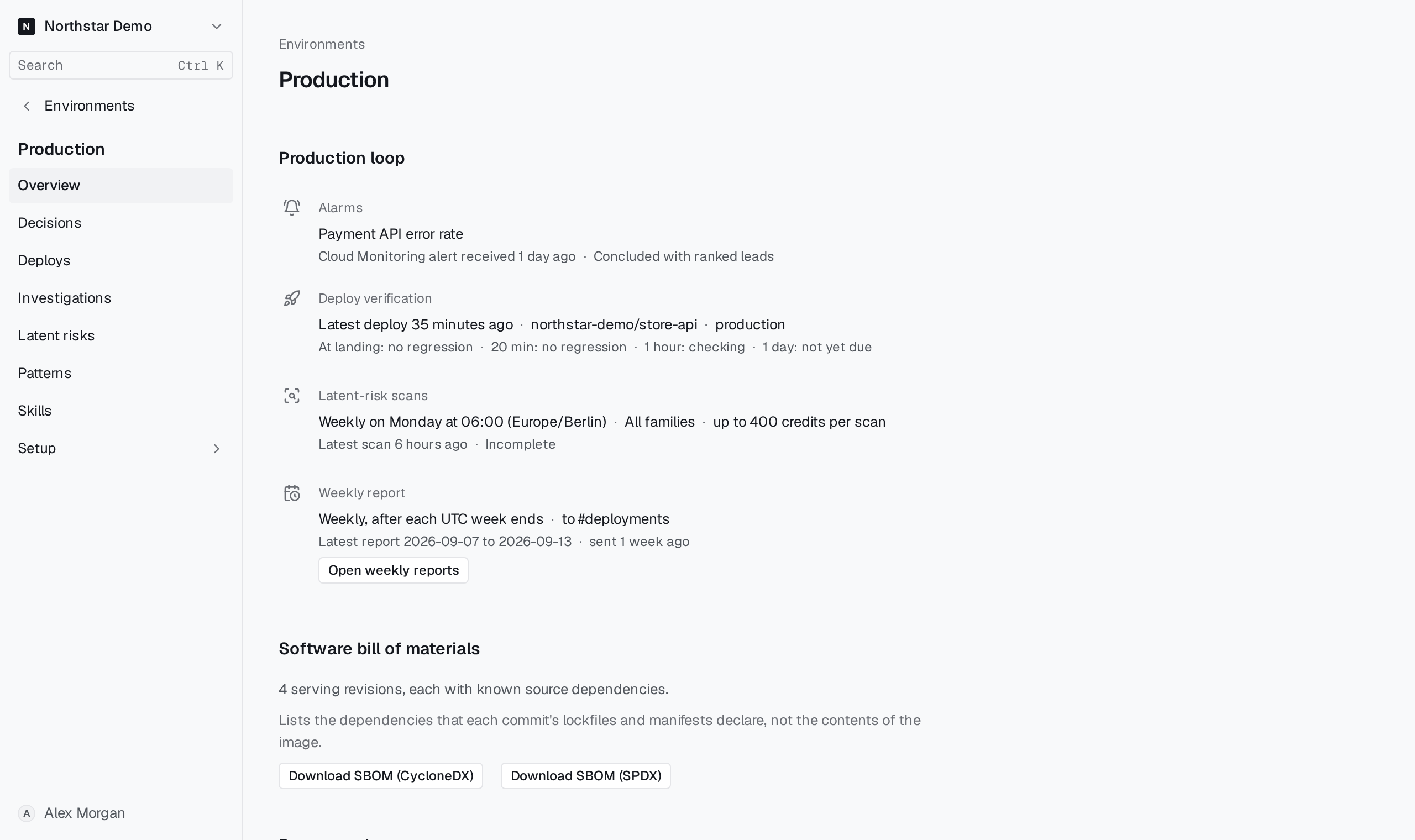
Download an environment's SBOM#
- Open Environments and select the environment.
- On its Overview, find Software bill of materials.
- Select Download SBOM (CycloneDX) or Download SBOM (SPDX).
Above the buttons, the card says how many serving revisions Proofline found and how many of them have unknown source dependencies. The document marks each unknown one as unknown, with the reason, so a missing entry is never read as an empty dependency list. Each download adds an entry to the organization's audit log.
Proofline learns which commits an environment serves from Cloud Run, through the environment's Google Cloud connection. The card says when it cannot export:
- Not set up: select Open setup, then connect the environment's Google Cloud project or add a Cloud Run serving source. See Connect Google Cloud.
- Not supported: the environment runs on AWS only. The export does not cover AWS services.
- No SBOM download is available. means Proofline did not check which revisions the environment serves.
For an environment with both Cloud Run and AWS, the SBOM covers its Cloud Run services only.
Download a deployment review's SBOM#
Open a deployment review. Under Software bill of materials, select Download SBOM (CycloneDX) or Download SBOM (SPDX).
When the card says the head commit's source dependencies are not known yet, the download marks them unknown and asks Proofline to read them. A later download includes them once Proofline has read them. If reading them fails or finds no packages, they stay marked unknown.