
Clear Inbox setup tasks
A setup task on the Inbox names a gap that an administrator can close: something alert investigations, deploy checks, latent-risk scans or watched alarms could not read, AWS CodePipeline or Amplify deploys that Proofline cannot read, GitHub deployments that report no status or go to a GitHub Environment the environment does not watch, results that no Slack channel received, or Sentry alerts that opened no investigation. Each task appears under its environment's name and offers the action that opens the page where you repair it. A task from alert investigations, deploy checks or latent-risk scans says how many recent runs named the gap, and Last seen gives when a run last named it. A Report deployment status task counts a repository's GitHub deployments instead, and Last seen gives when the newest was created. A Choose GitHub Environments task counts successful deployments, and Last seen gives when the newest succeeded. A watched-alarm or AWS delivery task shows Since, when its reads began to fail or a watched alarm was first not found in AWS. Only administrators see setup tasks, except gate requirements rows.
A gap that no setup step closes, such as an investigation that ran out of time, does not appear here or on the investigation, deploy or scan that recorded it. Proofline keeps it only in that run's record, so a short list of tasks does not mean the evidence is complete.
Alert investigations#
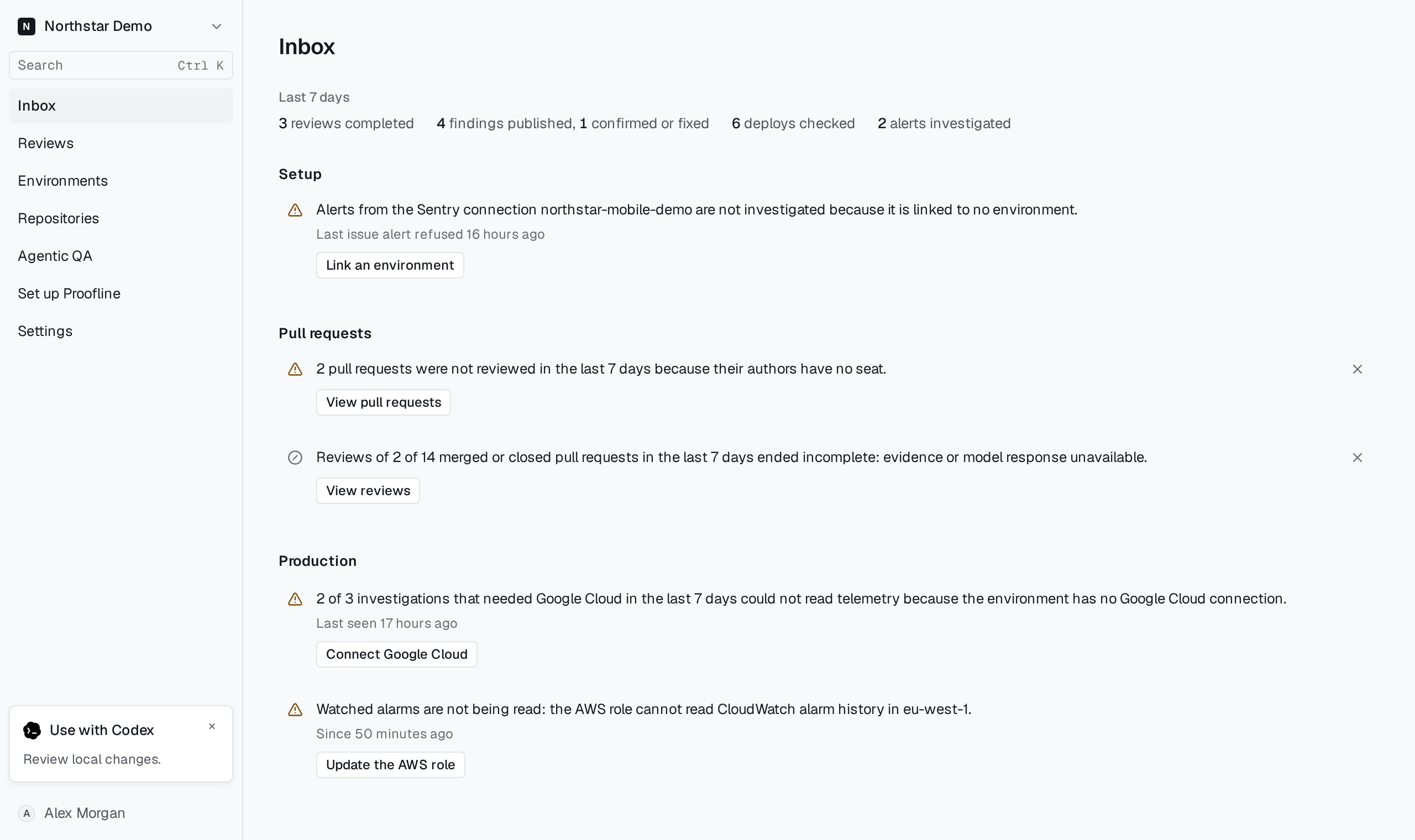
Each task counts the investigations in the last 7 days that could not read telemetry, deploys or merges, out of those that needed the same source, such as 2 of 3 investigations that needed Google Cloud in the last 7 days could not read telemetry because the environment has no Google Cloud connection. A Slack task counts out of the investigations that an alert started. Neither count is the environment's total.
| Action | Raised when | What to do |
|---|---|---|
| Connect Google Cloud | The environment has no Google Cloud connection to the alert's project. | The action opens the environment's Setup → Google Cloud page. Add a connection there, as Connect Google Cloud describes. |
| Check Google Cloud access | Google Cloud refused a read that the connection is not granted. | The action opens Setup → Google Cloud. Grant the connection the reads its setup lists, then select Verify capabilities on the connection's page. |
| Connect AWS | The environment has no AWS connection in the alarm's account and region. | The action opens Settings → Connections → AWS. Follow Connect Amazon Web Services, then connect the account to the environment. |
| Link the AWS account | The alarm's AWS account is connected but not linked to the environment in the alarm's region. | The action opens the environment's Setup → AWS accounts page. Link the account to the environment in the alarm's region. |
| Check AWS connection | The AWS connection that holds the alarm is not connected. | The action opens that AWS connection. Repair it there. |
| Update the AWS role | AWS refused a CloudWatch read that the connection's role does not grant. | The action opens the alarm's AWS connection, or Settings → Connections → AWS when no connection holds the alarm. Update the installed role and verify it. |
| Open access request | AWS refused the inventory read that looks up the alarm's resource, so the investigations could not look it up. | The action opens the alarm's AWS connection on its Access request, which lists the refused reads, or Settings → Connections → AWS when no connection holds the alarm. Grant them with the command or the installation files it offers, then select Check access again. |
| Choose what Proofline reads | AWS refused a CloudWatch read because the connection leaves alarm, metric or log reads out of its role. | The action opens the connection's read choices. Check the reads again and update the installed role. |
| Open the Sentry connection | Sentry could not be read, and the organization has a connection for the alert's Sentry organization. | The action opens that connection. Link it to the environment, connect it again or replace its credentials. |
| Open connections | Sentry could not be read, and the organization has no connection for the alert's Sentry organization. | The action opens Settings → Connections. Open the Sentry connection, then link it to the environment, connect it again or replace its credentials. |
| Open Azure connections | The environment has no verified Azure connection for the alert's subscription, or Azure refused a metric read. | The action opens the environment's Setup → Azure page. Repair setup explains both repairs. |
| Choose a GitHub Environment | GitHub Actions delivers the environment, and no delivery repository names the GitHub Environment it deploys to, so the investigations read no deploys. | The action opens the environment's Setup → Repositories page. Open the repository that deploys to the environment, select its GitHub Environments under GitHub Environments, then select Save. |
| Link a repository | No linked repository delivers to the environment, so the investigations read no merges. | The action opens Setup → Repositories. Select Add, choose the repository that deploys to the environment and link it, as Link repositories and environments describes. |
Watched alarms#
These tasks read Watched alarms are not being read and name the region, or say that the AWS account's role cannot be used. No investigation opens from a watched alarm until you repair the watch. A watch whose reads work can still have alarms that AWS no longer holds, such as alarms deleted or renamed in AWS, or composite alarms, which Proofline cannot read; its task says how many. An environment shows one watched-alarm task at a time, and a failing read comes first.
| Action | Raised when | What to do |
|---|---|---|
| Update the AWS role | The AWS role cannot read CloudWatch alarm history in the region. | The action opens the watch's AWS connection on its Access request, which lists cloudwatch:DescribeAlarmHistory. Update the installed role to the current template and verify it. |
| Choose what Proofline reads | The AWS role cannot read alarm history in the region because the connection leaves the alarm read out of its role. | The action opens the connection's read choices. Check the alarm read again and update the installed role. |
| Open AWS account | The watch's AWS connection is still linked to the environment in the region, but it is not connected or AWS refused to let Proofline assume its role. | The action opens that AWS connection. Repair the role there and verify it. |
| Review watched alarms | The watch's AWS connection was removed or is no longer linked to the environment in the region. | The action opens the environment's Setup → Deploy verification page. Under Watched alarms, repair the connection or choose the alarms through another one, as Choose the alarms Proofline reads describes. |
| Change alarms | AWS no longer holds one or more watched alarms, so they open no investigation. A renamed alarm is a new alarm to AWS. | The action opens the environment's Setup → Deploy verification page, where Watched alarms marks each one Not found in AWS. Select Change alarms, clear those alarms and choose their replacements. |
| Change alarms | The watch holds composite alarms. AWS returns them only to a session allowed to read every alarm, and Proofline's session names the watched alarms, so updating the role does not help. | The action opens Watched alarms, which marks each one Composite alarm, not read. Select Change alarms and clear them. To read the same signals, watch the metric alarms in their rules instead. |
Deploy verification#
These tasks count the environment's deploy checks in the last 7 days that could not verify the deploy, except Report deployment status and Choose GitHub Environments, which count GitHub deployments. A check that a later deploy superseded is not counted. Read a deploy's verification explains each check's gaps.
| Action | Raised when | What to do |
|---|---|---|
| Connect Google Cloud | No verified Cloud Build connection of the environment can read a signal's project. Cloud Build is the connection that reads Cloud Monitoring. | The action opens Setup → Google Cloud. Add a Cloud Build connection for the project the signals read, as Connect Google Cloud describes, then verify it. |
| Check Google Cloud access | Google Cloud refused the connection's credential, or refused a signal's Cloud Monitoring read that the connection is not granted. | The action opens Setup → Google Cloud. Grant the connection the reads its setup lists, then select Verify capabilities. |
| Choose signals | The environment watches no signal. Or it watches signals, but each names a service other than the Cloud Run or ECS services a repository's GitHub deployment task deploys, or a service of the same name in another project, location, account, region or cluster, so checks of that task compared no telemetry; the task then names the repository, the deployment task and its services. | The action opens Setup → Deploy verification. Add a CloudWatch signal as Configure deploy verification describes, or a Cloud Monitoring signal as Watch Cloud Monitoring signals describes. |
| Edit signals | A signal's query is not valid, or it returned no data and does not treat missing data as zero. | The action opens Setup → Deploy verification. Correct the signal's query, or select No data means zero when an absent value means zero. |
| Map deployment tasks | The task map does not name the deploy's GitHub deployment task, while it maps another task or the repository has deployed more than one task. | The action opens the deployed repository's Advanced evidence in the environment. Under Deployment tasks, map each GitHub deployment task to the services it changes: the ECS services of the repository's Runtime evidence adapter, or its Cloud Run services. |
| Review GitHub permissions | The GitHub App's attestations permission is not accepted, so checks could not tie a running image to its commit. | The action opens Settings → Installation. An owner of the GitHub organization accepts the permission on GitHub. |
| Choose a runtime | The deployed repository's delivery target names no runtime to read. | The action opens the repository's Advanced evidence in the environment. For ECS, choose the repository's services under Runtime evidence adapter, as Configure deploy verification describes. |
| Check AWS connection | The runtime's AWS connection, or a CloudWatch signal's, is not connected. | The action opens that AWS connection. Repair it there. |
| Open AWS accounts | No connected AWS connection linked to the environment covers a CloudWatch signal's account and region. | The action opens Setup → AWS accounts. Link a connection for that account and region. |
| Publish build provenance | No running image of the runtime's ECS services is tied to a commit, and for at least one of them GitHub holds no attestation, or only attestations that don't count, such as a self-hosted runner's. The repository's builds publish no build provenance Proofline can read. The task names the services, and any listed services the cluster does not run or that should run tasks and run none. | The action opens Publish build provenance, which names the attestation step the build workflow needs. Don't remove the services whose images aren't tied to a commit. When the task also names services the cluster does not run or that run no task, Edit ECS services opens the account's resource scope, where you remove each one you no longer deploy. |
| Edit ECS services | The runtime lists ECS services whose images no build of the repository attests while other running images are tied to a commit, services the cluster does not run, or services that should run tasks and run none. The task names them, and the containers whose images come from outside the environment's ECR repositories. A service scaled to zero is idle and not named, but when every listed service is scaled to zero, the revision the deploy runs stays unknown. | The action opens the account's resource scope, which suggests those containers for Containers built elsewhere and the services that run only such containers for removal. Keep only the services the repository deploys, and save. |
| Update the AWS role | AWS refused a CloudWatch signal's metric read that the connection's role does not grant. | The action opens the signal's AWS connection. Update the installed role and verify it. |
| Choose what Proofline reads | The runtime's AWS connection leaves ECS reads out of its role, or AWS refused a CloudWatch signal's metric read because the connection leaves that read out of its role. | The action opens the connection's read choices. Check the ECS reads or the metric read again and update the installed role. |
| Report deployment status | The environment recorded no deploy in the last 30 days, and a linked repository created GitHub deployments in that time for a GitHub Environment its link lists, none of which reported a status. A deployment counts once it is about an hour old. The task names the repository and the GitHub Environments. | The action opens Report a deployment status, which shows the step the deploy workflow needs. A deploy lands only when its deployment reports success. |
| Choose GitHub Environments | The environment recorded no deploy in the last 30 days, and a linked repository deployed successfully in that time only to GitHub Environments that neither its link nor another environment's link to the repository lists. The task names the repository, each of those GitHub Environments with its count of successful deployments, and the ones the link lists. | The action opens the repository's page in the environment. Under GitHub Environments, select the one this environment's deploys go to. |
While the organization's request for the attestations permission is open, the deploy checks it left incomplete are counted on that request's row under Setup instead, with View deploys.
Gate requirements#
A Review gate requirements row appears when a delivery target holds a proposed gate requirement that nobody has confirmed or dismissed. Since gives when the oldest open proposal was made. Anyone who can see the repository sees the row, and it clears once each proposal is settled, as Confirm gate requirements describes.
AWS delivery#
These tasks read Deploys of … are not being read and name each CodePipeline pipeline, or Amplify app and branch, that Proofline cannot read through one AWS connection. Proofline reviews and verifies no deploy of them until a read succeeds. The task shows when the reads began to fail.
| Action | Raised when | What to do |
|---|---|---|
| Update the AWS role | AWS refused the role's read of the pipeline's executions or the Amplify branch's jobs. | The action opens the binding's AWS connection. Update the connection's role to the current Proofline template and verify it. |
| Choose what Proofline reads | AWS refused the read because the connection leaves CodePipeline and Amplify runs out of its role. | The action opens the connection's read choices. Check the run reads again and update the installed role. |
| Open AWS account | The binding's AWS connection is still linked to the environment, but it is not connected or AWS refused to let Proofline assume its role. | The action opens that AWS connection. Repair the role there and verify it. |
| Review delivery | AWS finds no such pipeline, app or branch in the configured region. | The action opens the environment's Setup → Delivery page. Under Observed deployments, select Change beside the binding and correct it. |
| Review delivery | The binding's AWS connection was removed or is no longer linked to the environment. | The action opens Setup → Delivery. Repair the connection, or select Change beside the binding under Observed deployments and choose another AWS account. |
Latent-risk scans#
These tasks count the environment's latent-risk scans in the last 30 days that named the gap.
| Action | Raised when | What to do |
|---|---|---|
| Connect AWS, Connect Google Cloud and Connect Azure | The scans found no infrastructure inventory to examine, and the environment has no cloud connection. | Each action opens the environment's Setup → AWS accounts, Setup → Google Cloud or Setup → Azure page. Connect the account, project or subscription the environment runs in. |
| Check AWS accounts, Check Google Cloud connections or Check Azure subscriptions | The scans found no infrastructure inventory to examine, although the environment has a cloud connection. The task offers one action for each provider the environment connects. | The action opens that provider's Setup page. Check the connection the environment has. |
| Check AWS access, Check Google Cloud access or Check Azure access | The scans examined inventory that is missing reads the cloud connection is not granted. The task offers the action for each provider whose connection lacks a read, or for each provider the environment connects when its newest inventory names none. | The action opens that provider's Setup page. Grant the connection the reads its setup lists, then verify it again. |
Slack delivery#
Both channel tasks open Settings → Connections → Slack. They offer Connect Slack while Slack is not connected, and Choose a channel while Slack is connected and no channel is chosen.
| Raised when | What to do |
|---|---|
| Alert investigations found a likely cause or ranked leads that no Slack channel received, because the organization has no Slack delivery channel or Slack is not connected. | Connect Slack again if it is not connected, then choose and save the Delivery channel, as Set up Slack delivery describes. Earlier investigations are not posted afterward. |
| Latent-risk scans found existing problems that no Slack channel receives, because the organization has no Existing-problems channel or Slack is not connected. | Connect Slack again if it is not connected, then choose and save the Existing-problems channel, as Post new problems to Slack describes. |
A channel that Slack refuses appears under Setup with Repair Slack instead. The task names that channel. Repair a channel that is not delivering explains it.
Sentry alerts#
A Sentry connection that refused an issue alert because it is linked to no environment or to several, and still is, appears under Setup, not under an environment. The task reads Alerts from the Sentry connection … are not investigated and says when the last issue alert was refused. A refused metric alert neither raises the task nor clears it; Send issue alerts to Proofline explains it.
| Action | Raised when | What to do |
|---|---|---|
| Link an environment | The connection is linked to no environment. | The action opens the connection. Link the one environment its alerts belong to, as Link environments describes. |
| Edit linked environments | The connection is linked to several environments. | The action opens the connection. Unlink environments until one remains. |
When a task leaves#
Proofline works out the tasks each time the Inbox loads, from the newest runs. Repairing the setup does not change runs already recorded, so most tasks stay until a later run shows the repair:
- An alert investigation task leaves when a later alert investigation of the environment reads the same provider without the gap. Questions, fix re-checks, alerts from another provider and investigations that stopped early leave it in place. Choose a GitHub Environment and Link a repository leave with a later alert investigation from any provider that does not stop early and does not name the gap.
- A deploy verification task leaves when the environment's newest check no longer names the gap. Map deployment tasks follows each repository's GitHub deployment tasks instead: it leaves when the newest check of each deployment task that named it no longer names it. Choose signals follows them the same way when it names a deployment task's services. A check of another deployment task, or of a deploy that carries no deployment task, leaves either in place.
- A latent-risk scan task leaves when the environment's newest scan no longer names the gap. A Check … access task also leaves once the environment's newest inventory names no read its connections lack, so a Google Cloud or Azure grant clears it at the next inventory collection. Proofline asks AWS again for a read it refused only after 24 hours, so after an AWS grant, select Check access again on the AWS connection; the task leaves at the next collection after that.
Some deploy verification tasks follow the configuration instead. Choose signals leaves as soon as the environment watches a Cloud Monitoring or CloudWatch signal. When it names a deployment task's services, it leaves as soon as a watched signal names no service, or names one of those services where the map places it: in the signal's project and, when its location label names a location, in that location; or in the signal's account and region and, when its ClusterName dimension names a cluster, in that cluster. It leaves without waiting for the next deploy. Connect Google Cloud leaves as soon as a verified Cloud Build connection of the environment reads the project of each Cloud Monitoring signal it watches. Edit signals leaves as soon as the environment no longer watches a signal whose reading in the newest check named the gap, such as after you correct or remove that signal. Review GitHub permissions leaves as soon as the deployed repository's GitHub installation no longer waits for the attestations permission. Choose a runtime, Check AWS connection, Open AWS accounts and Choose what Proofline reads for ECS reads leave as soon as the environment's configuration no longer calls for the step, without waiting for the next deploy. Choose a GitHub Environment also leaves as soon as GitHub Actions no longer delivers the environment. Report deployment status leaves as soon as one of the repository's deployments in the last 30 days reports a status or the environment records a deploy, and once its newest deployment is more than 30 days old. Choose GitHub Environments leaves as soon as the repository's link changes, the repository creates a deployment for a GitHub Environment its link lists, another environment's link to the repository lists each GitHub Environment the task names or the environment records a deploy, and once its newest successful deployment to another GitHub Environment is more than 30 days old. Every deploy verification task leaves while Check each deploy is off for the environment. The investigations' Choose a channel and Connect Slack leave as soon as the organization has a connected delivery channel. The scans' Choose a channel and Connect Slack leave under every environment as soon as the organization has an Existing-problems channel in a connected Slack workspace.
Some alert investigation tasks also leave as soon as the configuration shows the repair, without waiting for the next alert. Connect Google Cloud leaves once the environment has a Google Cloud connection to the project of the newest alert that raised the task. When that alert records no project, the task waits for the next alert. Link the AWS account leaves once the alarm's AWS account is linked to the environment in the alarm's region. Open the Sentry connection leaves once the alert's Sentry connection is connected and linked to the environment, unless Sentry itself refused the read. Choose a GitHub Environment leaves once a delivery repository names the GitHub Environment, CodePipeline pipeline or Amplify branch it deploys through, and Link a repository leaves once a repository delivers to the environment. CloudWatch tasks leave while Accept CloudWatch alarms is off, the Sentry task leaves while no Sentry connection is linked to the environment, and Open Azure connections leaves while the environment has no active, verified Azure connection, because no alert could show those repairs.
A task also leaves when the run that last named it, shown as Last seen, is older than the window it counts: 7 days for alert investigations and deploy checks, 30 days for latent-risk scans. The task leaves without any run confirming the repair, so check the environment's next run before relying on it. Report deployment status and Choose GitHub Environments have no such window and leave only as described above.
A watched-alarm task has no window. It follows the watch's latest read, which runs about every minute, and leaves with the first read that ends without either problem. A task for alarms AWS no longer holds leaves when a read finds them again or you save the watch without them. It also leaves when you clear Accept CloudWatch alarms for the environment.
An AWS delivery task has no window either. Proofline reads each pipeline and Amplify branch about every two minutes, and the task leaves with the first read that ends another way. That includes a read AWS did not answer, so check the binding's last read under Observed deployments before relying on the repair. The task also leaves when the binding is removed from the environment's delivery configuration.
A Sentry task follows the connection's links. It leaves as soon as the connection is linked to exactly one environment, or once the connection is no longer active.
Every task also leaves when its environment is removed.
Setup tasks offer no Dismiss: each stays until the setup is repaired or the task leaves as described above.