
Manage this browser’s preferences
Open your account menu and select Account preferences to change what Proofline remembers in the browser you’re using.
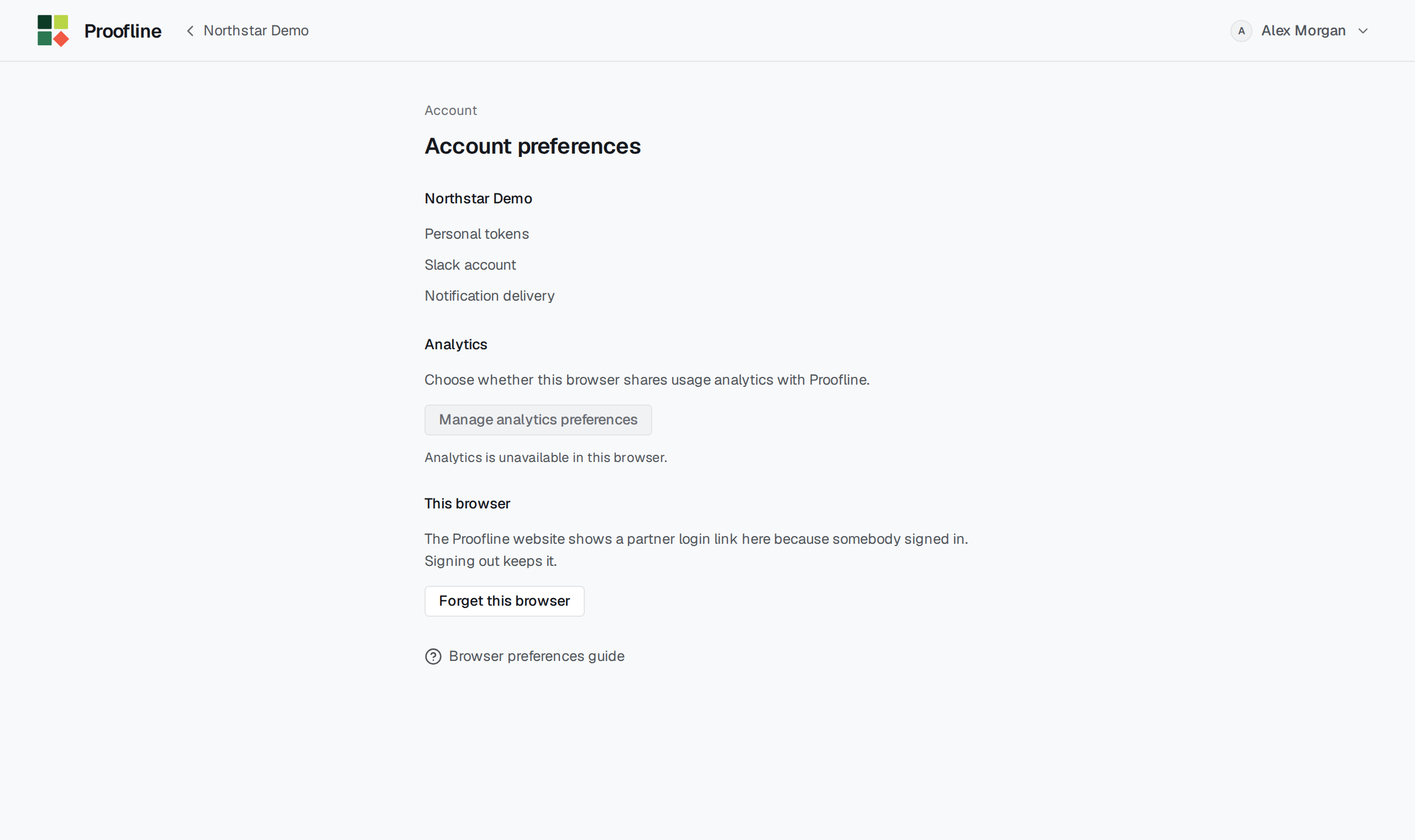
Remove the partner login shortcut#
After someone signs in, the Proofline website shows a partner login link in that browser. To remove it, select Forget this browser under This browser.
Your current session stays active. On a shared computer, open the account menu and select Sign out as well. Signing out on its own keeps the shortcut.
Change your analytics choice#
Under Analytics, select Manage analytics preferences. In Cookie consent, choose Allow or Decline for optional analytics and ad measurement cookies. The choice applies to this browser.
If the page says Analytics is unavailable in this browser, the consent control is unavailable here.