
Trace a deployment decision
To find out why Proofline allowed or blocked a deploy, open Environments, choose the environment, then select Decisions.
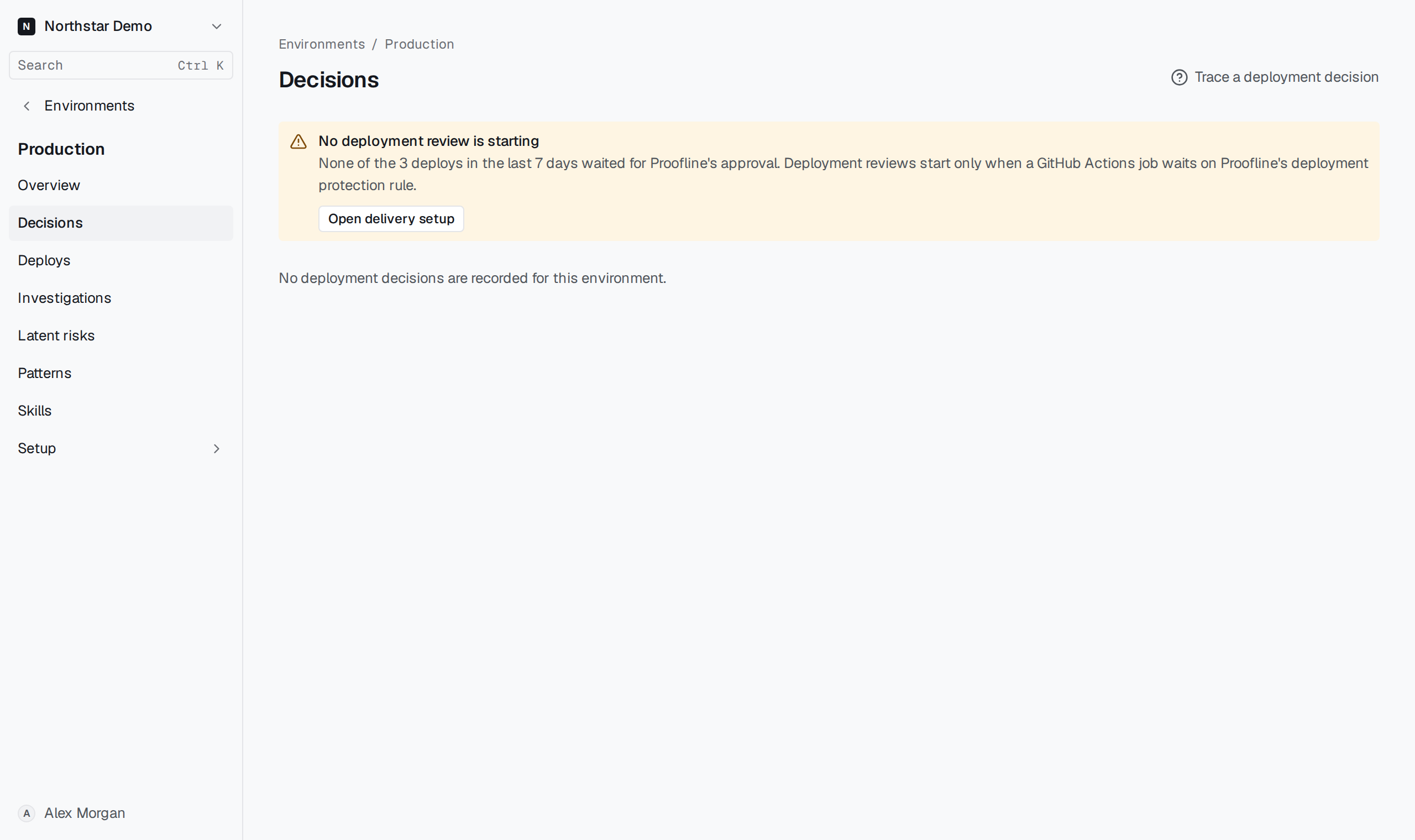
Find the decision for a commit#
Find the repository and commit under Target. If a commit has several decisions, use the decision time and the linked workflow run or Cloud Build build to identify the attempt. Use Next to page through the loaded decisions and Load older decisions to fetch more when available.
Open Details on the row to see the reason and the status of each recorded environment assessment. Follow Review when available to inspect the supporting findings. Allowed means the recorded policy permitted the deployment. To see what happened after the revision landed, read the deploy’s verification checks.
When a deploy has no decision#
If recent deploys landed without waiting for Proofline, the page can show No deployment review is starting. On GitHub Actions, the deployment job must wait for Proofline’s protection rule. On Cloud Build, the bound trigger must require approval. An administrator can follow Open delivery setup to check deployment protection.
If Deployment processing failures lists an attempt, processing ended before Proofline recorded an authorization decision. Follow Open associated review when available. Expand Failure record reference for the gate reference and policy if you need to identify that attempt.