
Filter investigations by symptom, source and state
On an environment’s Investigations tab, combine a symptom search with filters to narrow the list to an alert, a question or a particular result.
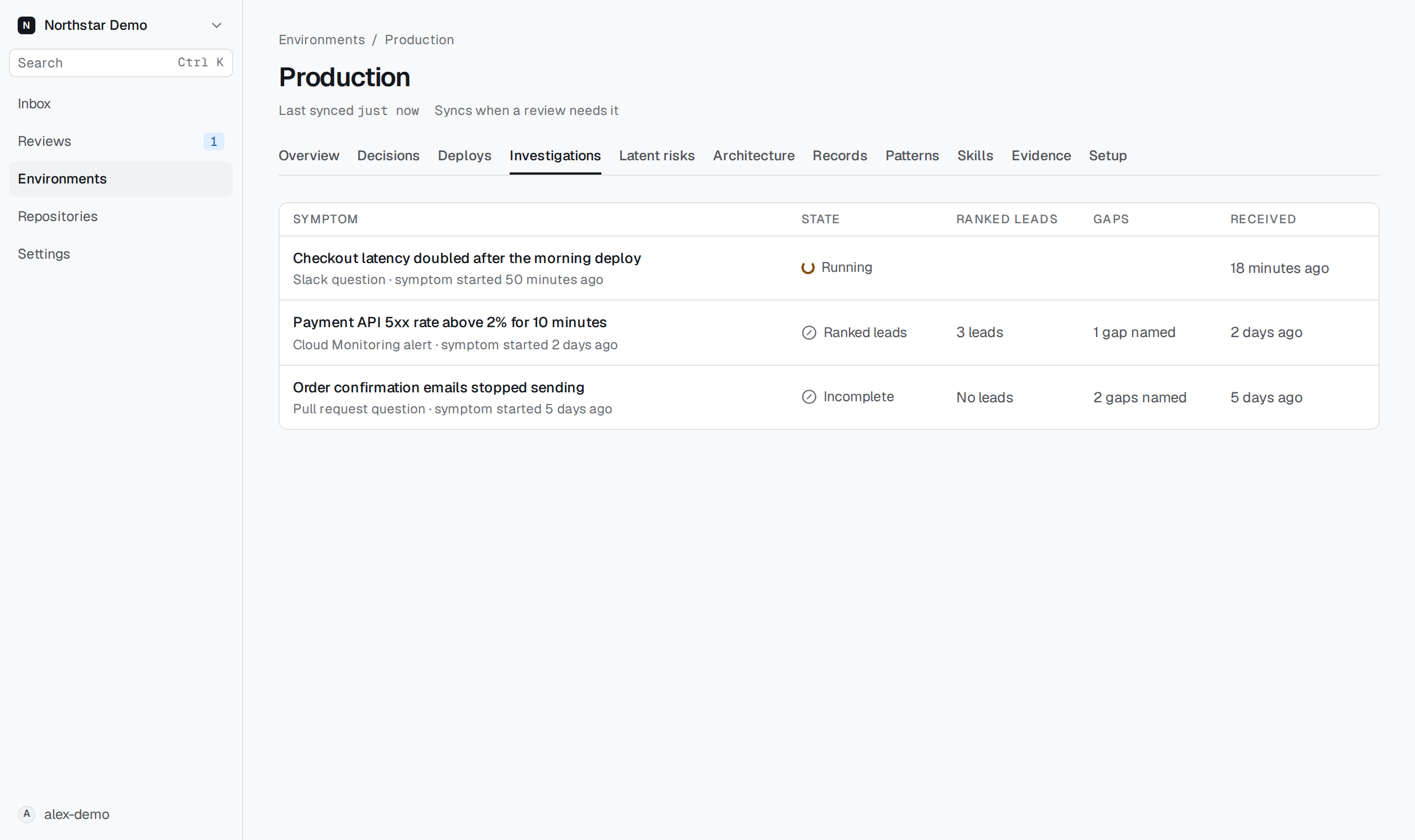
Combine the search and filters#
Type in the search field above the list to show only the investigations whose alert name, symptom or question contains that text. The search ignores case and covers every page, not only the rows shown.
Two filters follow the search:
- Started by: select Questions to list only the investigations a person asked for in Slack or on a pull request, or Alerts to list only those a Cloud Monitoring alert, a CloudWatch alarm, a Sentry issue alert or an Azure Monitor alert started. A rerun, a Replay and a Fix re-check are in neither list.
- State: select a state, such as Likely cause, to list only the investigations in that state.
The search and the filters combine, and they also apply within the list of one alert. The page address keeps them, so you can share a filtered list or reload it. Select Clear filters to remove them all.
When State is not set and every investigation on a page is in the same state, the page names that state once above the list and leaves out the State column. With State set, the filter already names the state, so the page adds no line and leaves out the column.