
Remove the saved login shortcut on a shared computer
The public Proofline site can remember a partner login shortcut in a browser after someone signs in. You can remove that shortcut and separately end the current session.
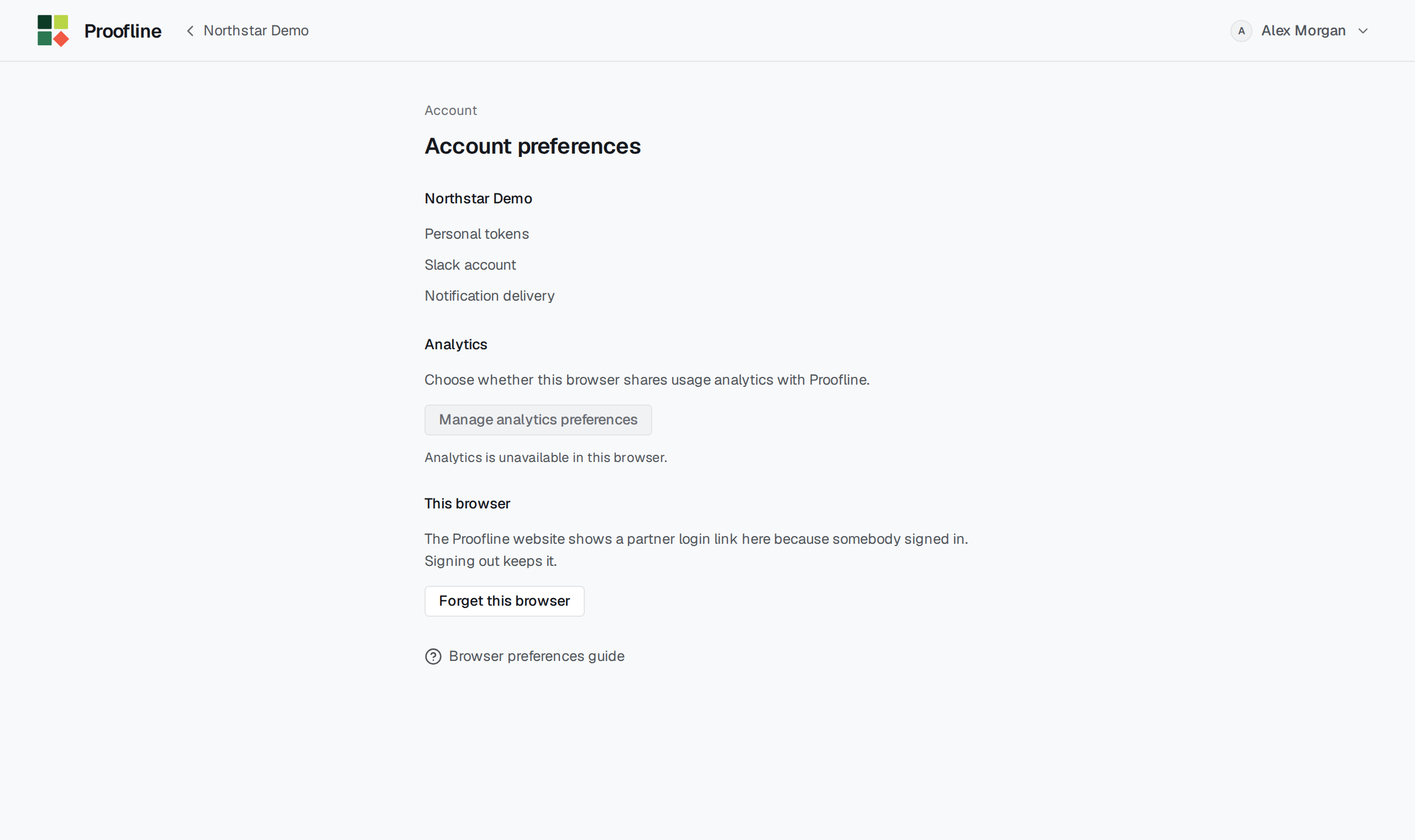
Forget the browser and sign out#
Open your account menu, choose Account preferences and under This browser select Forget this browser. On a shared computer, then open the account menu and select Sign out.
Forgetting the shortcut leaves the current session active until you sign out. Signing out by itself leaves the shortcut available in that browser.