
Fix Azure alerts that Proofline refused
Use the notice on an Azure alert webhook to tell whether the alert reached the wrong subscription or the receiving connection needs verification. As an organization administrator, open the environment's Setup → Azure, find the subscription, and read Alert webhooks.
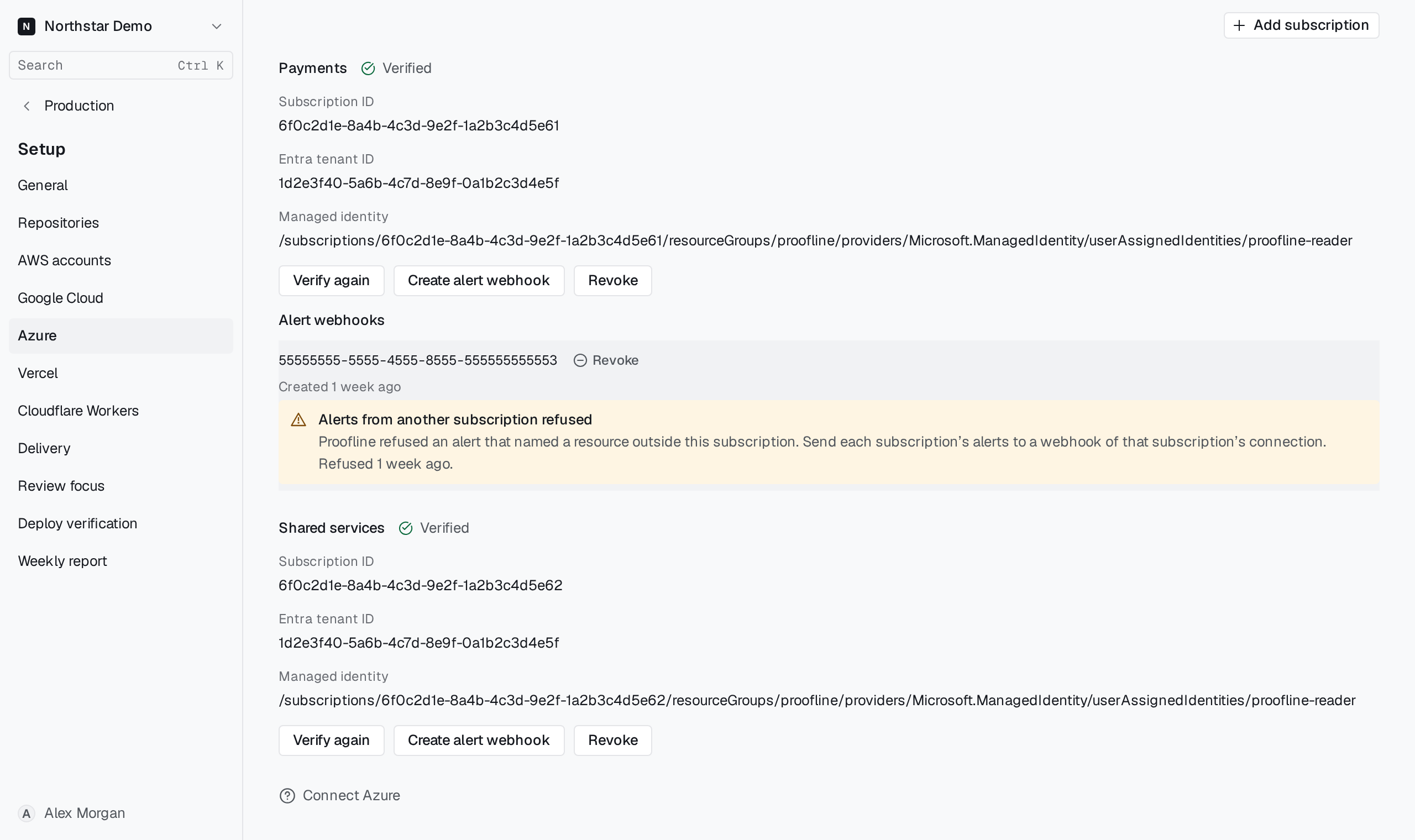
Alerts from another subscription refused#
The alert or one of its target resources belongs outside the subscription for this webhook. Check which subscription the alert and its targets belong to. In Azure Monitor, send each subscription's alerts to a webhook created for that subscription's connection. Set up the webhook and action group if the subscription needs one.
The refusal notice shows the time of the refused delivery. Alerts for the webhook's own verified subscription can still start investigations.
Alerts open no investigation#
Proofline refused the last alert because the subscription connection was unverified. Select Verify on the notice. If verification fails, check the managed identity and its Reader assignment.
After verification succeeds, check that the next alert for the subscription opens an investigation in the environment.