
Send Cloud Monitoring alerts to Proofline
Create an alert webhook on the environment's Google Cloud setup and add it to Cloud Monitoring as a webhook notification channel. Then attach the channel to the alert policies Proofline should investigate.
Create the webhook#
You must be an organization administrator, and the environment must have a Google Cloud connection to the project whose alert policies you want to send. Each connection has its own webhooks.
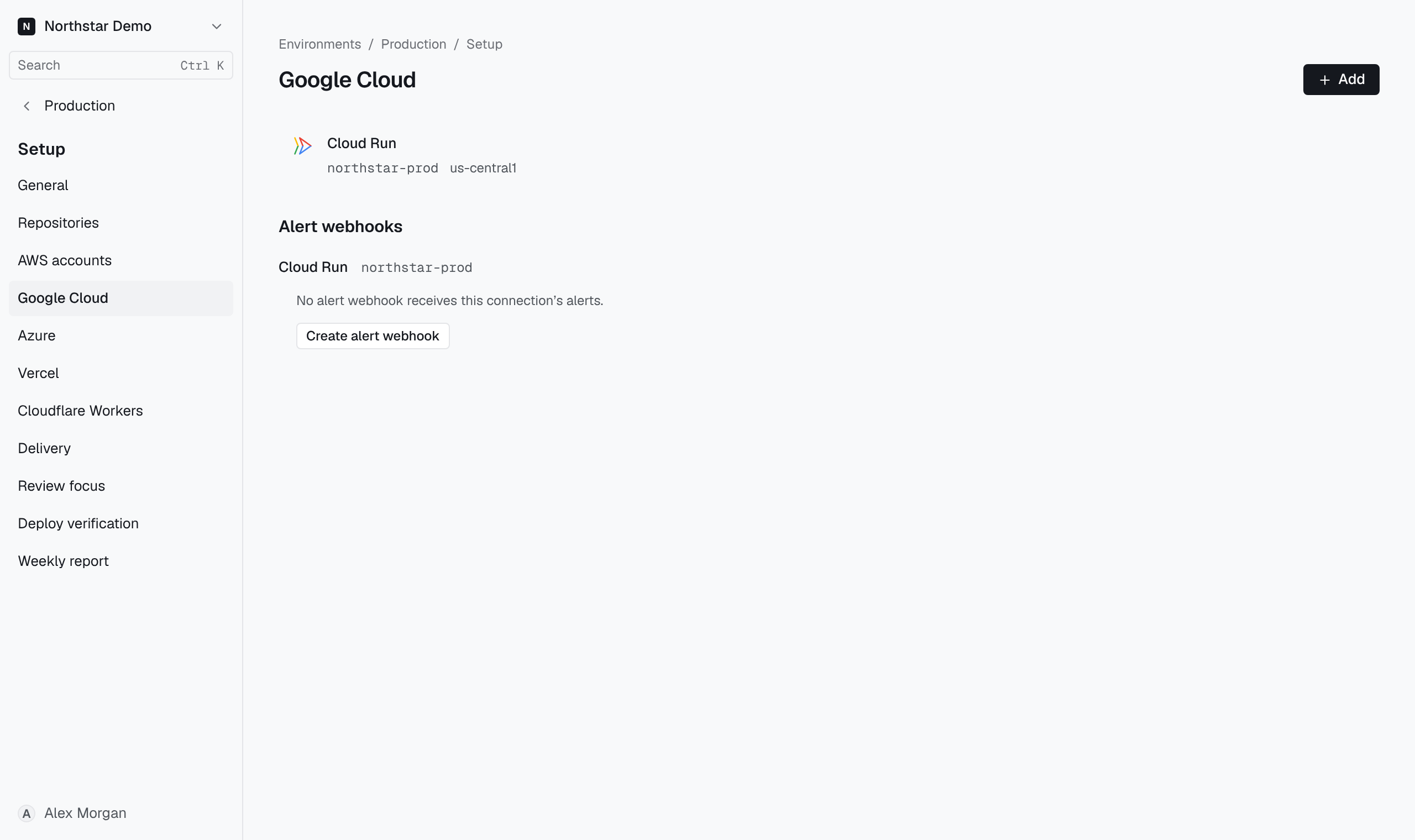
- Open the environment's Setup → Google Cloud page.
- Under Alert webhooks, find the connection for the alert policies' project and select Create alert webhook.
- Copy the Endpoint URL, User name and Password. Proofline shows the password once, so store it as a secret.
- Select I saved the password.
Add the channel in Cloud Monitoring#
- In the Google Cloud console, open Monitoring → Alerting and select Edit notification channels.
- Add a webhook. Enter the Endpoint URL, turn on Use HTTP Basic Auth, and enter the user name and password.
- Add the channel to each alert policy whose alerts Proofline should investigate.
What starts an investigation#
When an incident of an attached policy opens, Proofline starts an investigation in the environment and posts it to Slack. Find it on the environment's Investigations page. Notifications that repeat an incident start nothing new. When the incident closes, Proofline records the close on its investigation and starts no other one.
Proofline refuses a notification, and starts nothing, when:
- the alert belongs to a project other than the connection's, as Repair alerts from another project describes;
- the webhook or its connection was revoked, or its environment was removed;
- the environment's Accept alerts switch is off. See Pause deploy verification or alert intake.
Cloud Monitoring does not send a refused notification again, and turning Accept alerts back on replays nothing.
Repair alerts from another project#
A webhook serves only the alert policies of its connection's project. When an alert policy of another project sends to it, Proofline refuses the notification, and Alert webhooks shows Alerts from another project refused beneath that webhook, with when it last refused one. The warning names the webhook's project, not the project of the refused policy. Administrators also get an Inbox task under the environment, whose Open alert webhooks opens this list.
- In the Google Cloud console, find the other projects whose notification channels use this webhook's endpoint URL. The URL ends with the ID that Alert webhooks shows.
- If the environment has no Google Cloud connection to such a project, add one, as Connect Google Cloud describes.
- Under that project's connection, create an alert webhook, as Create the webhook describes.
- In that project, change the notification channel to the new webhook's endpoint URL, user name and password.
If a project's alerts belong to another environment, use a webhook of that environment's connection instead. If Proofline should not investigate them, remove the channel from that project's alert policies.
The warning and the Inbox task stay after the repair, and alerts that the webhook admits do not end them, because one channel can serve alert policies of several projects. They end on their own once refused notifications stop, as When a task leaves describes. Revoking the webhook removes its warning at once, but Proofline then refuses its own project's alerts too.
While Accept alerts is off, the Inbox task is hidden, but Alert webhooks still shows the warning and when the webhook last refused a notification. During the pause Proofline refuses every notification without reading its project, so it records no new refusal from another project. A hidden task, or a warning that ends during the pause, does not show that the other project's policies were repaired. If you turn Accept alerts back on within 7 days of the last refusal, the task returns, and both end 7 days after that refusal unless another project's notification is refused again. If you turn it back on later, neither shows, and the first notification a misrouted policy sends raises both again. Either way, a repaired route shows as 7 days of accepted alerts with no new refusal.
Revoke a webhook#
A webhook stays valid until you revoke it, revoke or remove its Google Cloud connection, or remove the environment. Alert webhooks lists each connection's webhooks by the ID that ends the endpoint URL, with when it was created.
- Select the webhook's Revoke, then Revoke again to confirm.
- In Cloud Monitoring, delete the notification channel, or remove it from your alert policies.
If you lose the password, create another webhook, change the channel to use it, then revoke the old webhook.