
Replace or disconnect an environment's Vercel or Cloudflare connection
Replace a saved hosting connection to point an environment at a different Vercel project or Cloudflare account. Disconnect it when the environment should keep no connection to that provider.
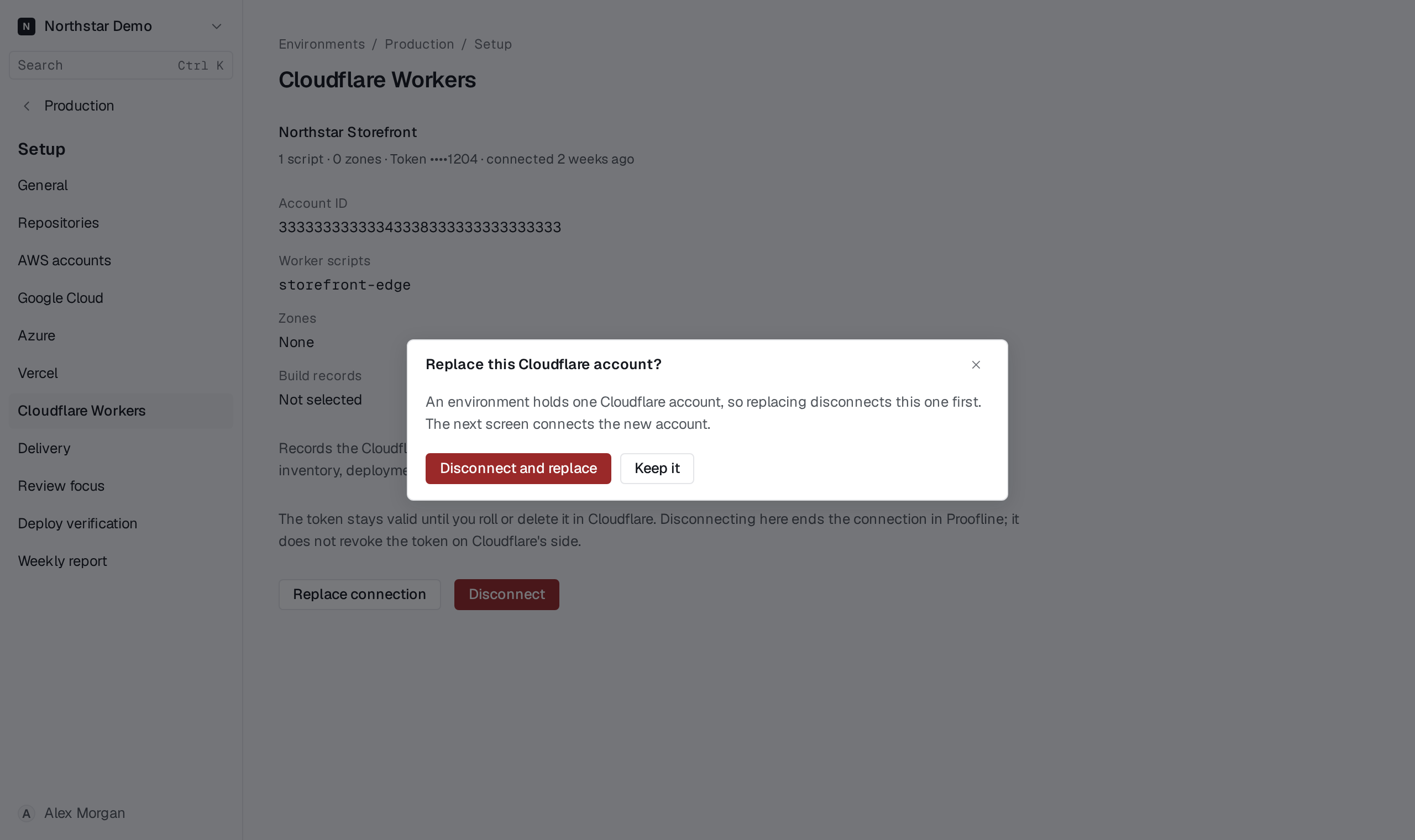
Check which connection you are changing#
As an organization administrator, open the environment's Setup and choose Vercel or Cloudflare Workers. Select Manage. On Vercel, the line under the project shows Marketplace authorization for a Marketplace connection or Token with its hint for an API token. The Cloudflare account shows the token hint and the connected scripts and zones.
Replace the connection#
- Select Replace connection.
- Select Disconnect and replace to remove the current connection and open the form for its replacement.
- Enter the replacement project or account and select Connect. The environment has no connection to that provider until the form saves.
If Marketplace setup is available, you can authorize the replacement Vercel project through the Marketplace after disconnecting the current project.
Disconnect the connection#
Select Disconnect, then confirm Disconnect in Disconnect this Vercel project? or Disconnect this Cloudflare account? In the environment's Setup, the provider section shows No Vercel project connected. or No Cloudflare account connected.
For Cloudflare, roll or delete the token in Cloudflare if you also want to end its provider access. The token stays valid in Cloudflare until you do.