
Add a QA test login that signs in through another provider
Give a QA journey a dedicated test account at the provider your site sends users to for sign-in.
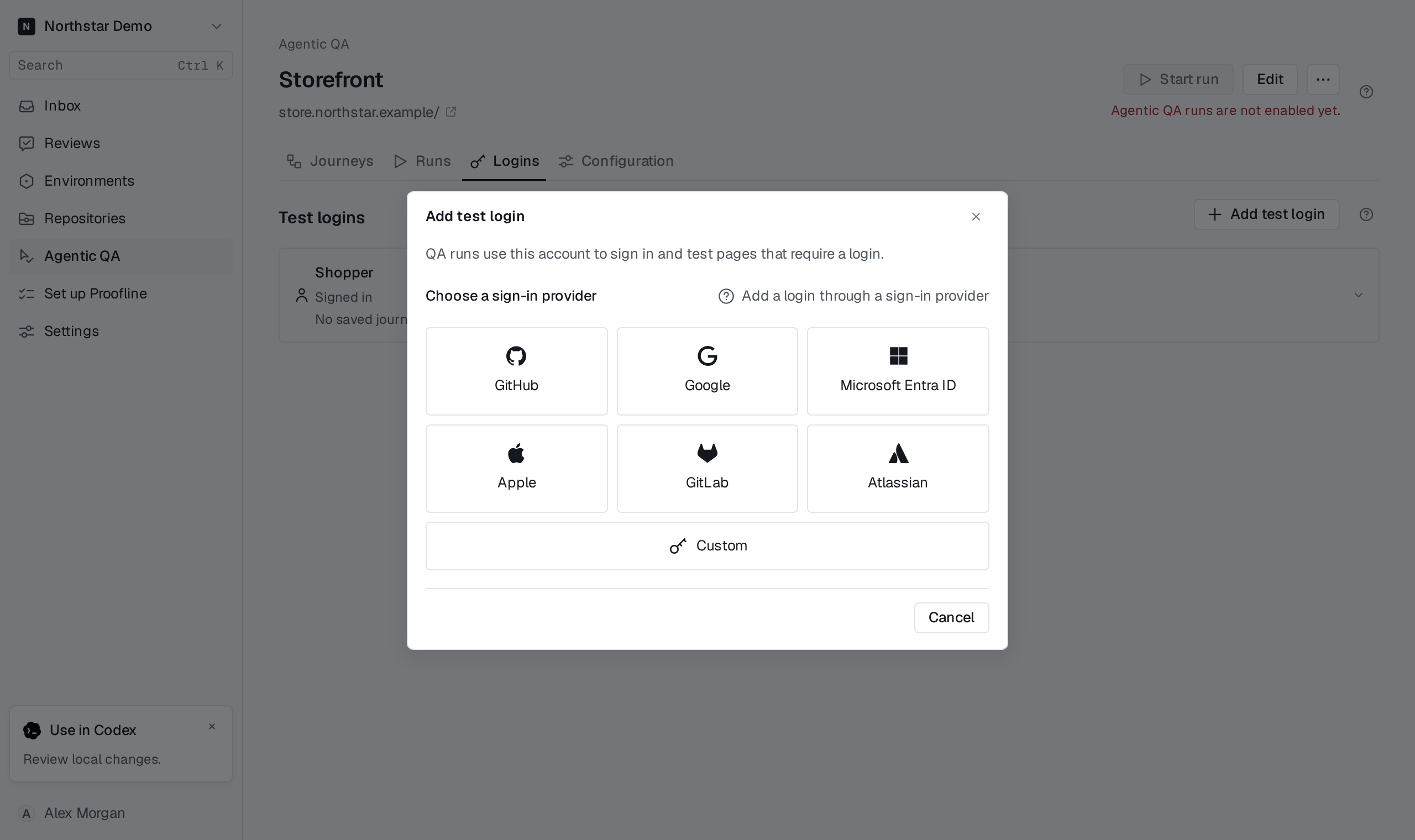
Add the provider's test account#
On the saved setup, open Configuration, find Test logins, and select Add test login. This action is available on active setups where signed-in testing is available and you can manage the setup.
- Under Choose a sign-in provider, pick the provider your site uses. GitHub, Google, Microsoft Entra ID, Apple, GitLab, and Atlassian each select their sign-in origin for you. Choose Custom to select or add the origins yourself.
- On the test account step, fill in Username and Password for the provider's test account. Under Sign-in origins, select only the origins where the run should enter those credentials. To include another, enter its HTTPS origin in Add another origin… and press Enter. Leave out paths, query strings, and fragments. Saving the login also allows the setup to open any selected origins that are new to it. Select Continue.
- Under Two-factor authentication, choose None if the run only needs to enter a password, or add an authenticator code for a test account that uses one. Select Continue.
- Under Signed-in check, enter a Check page and Check text the page shows only when the account is signed in. Enter both fields if you want the run to verify sign-in. You can set a Login name to use in runs, or leave it blank to use the username. Select Add login.