
Read the Integrations directory and each integration's status
Open Settings, then Connections and Integrations to see what's connected, what needs attention and what you can set up.
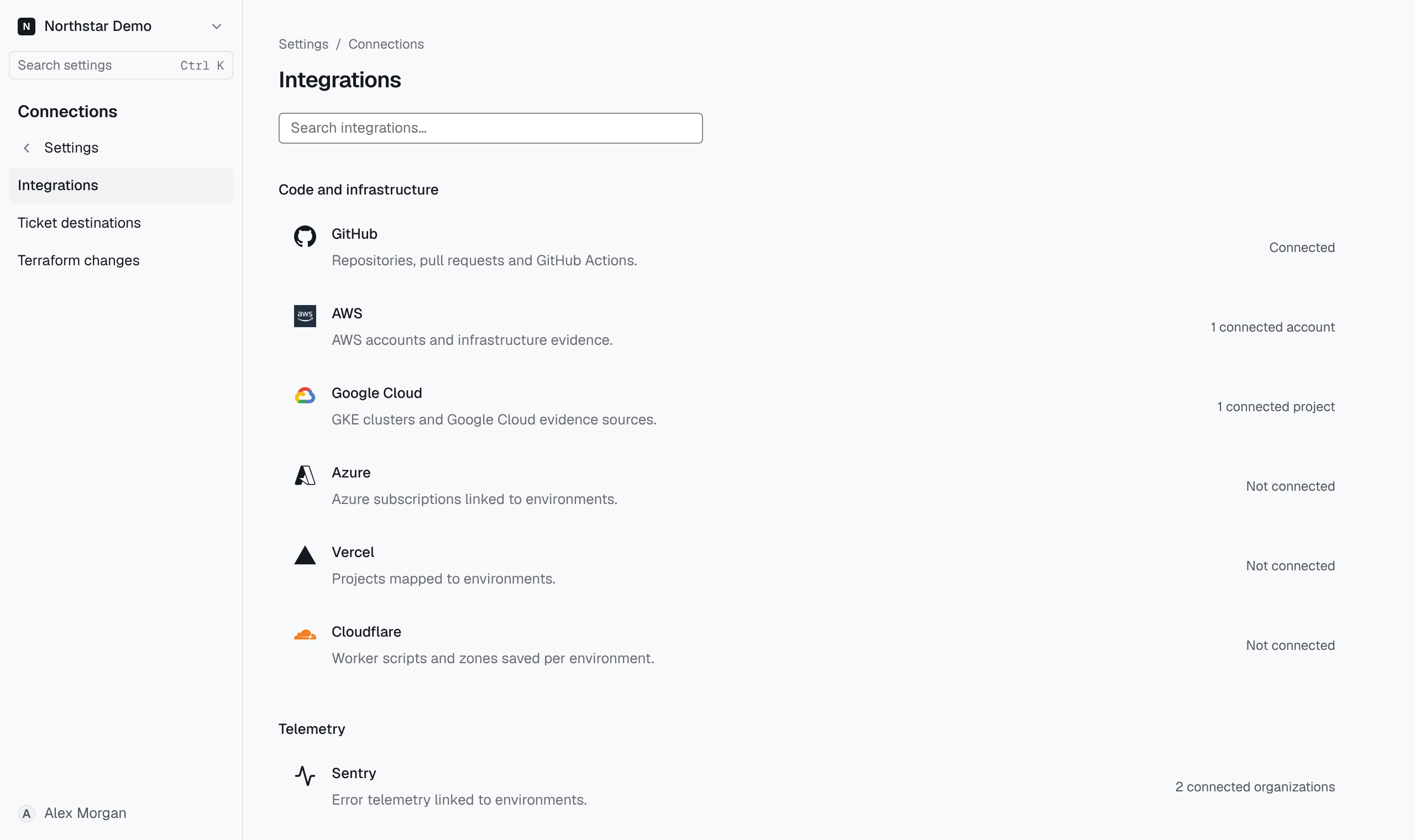
Find an integration#
Use Search integrations to look for a provider or a service, such as Cloud Run. Connected puts integrations that need attention first, followed by those with a connection. Available groups integrations you can open to set up, along with rows whose status could not be read.
If the directory is still checking connections, it shows placeholders under Connected until those reads settle. Providers you cannot connect and have no existing connection for appear under Not yet available in Proofline. A search opens that section when it finds a match there.
Read the status beside an integration#
- Status unavailable means the directory could not read the integration's state. Reload the directory or open the integration to check it directly.
- Setup not finished means an AWS, Google Cloud or Azure setup was started and none of its connections qualifies for the directory's connected count. Open the integration to see which setup step is outstanding.
- Reconnect required means at least one account for that provider needs authorization again. Open the provider and use Authorize again where offered. Restore a provider authorization.
- Unavailable means the directory has an existing entry for the provider, but none of its accounts is active and the provider cannot be connected now. Open it to see the stored connection.