
Fix a ticket destination that is not ready
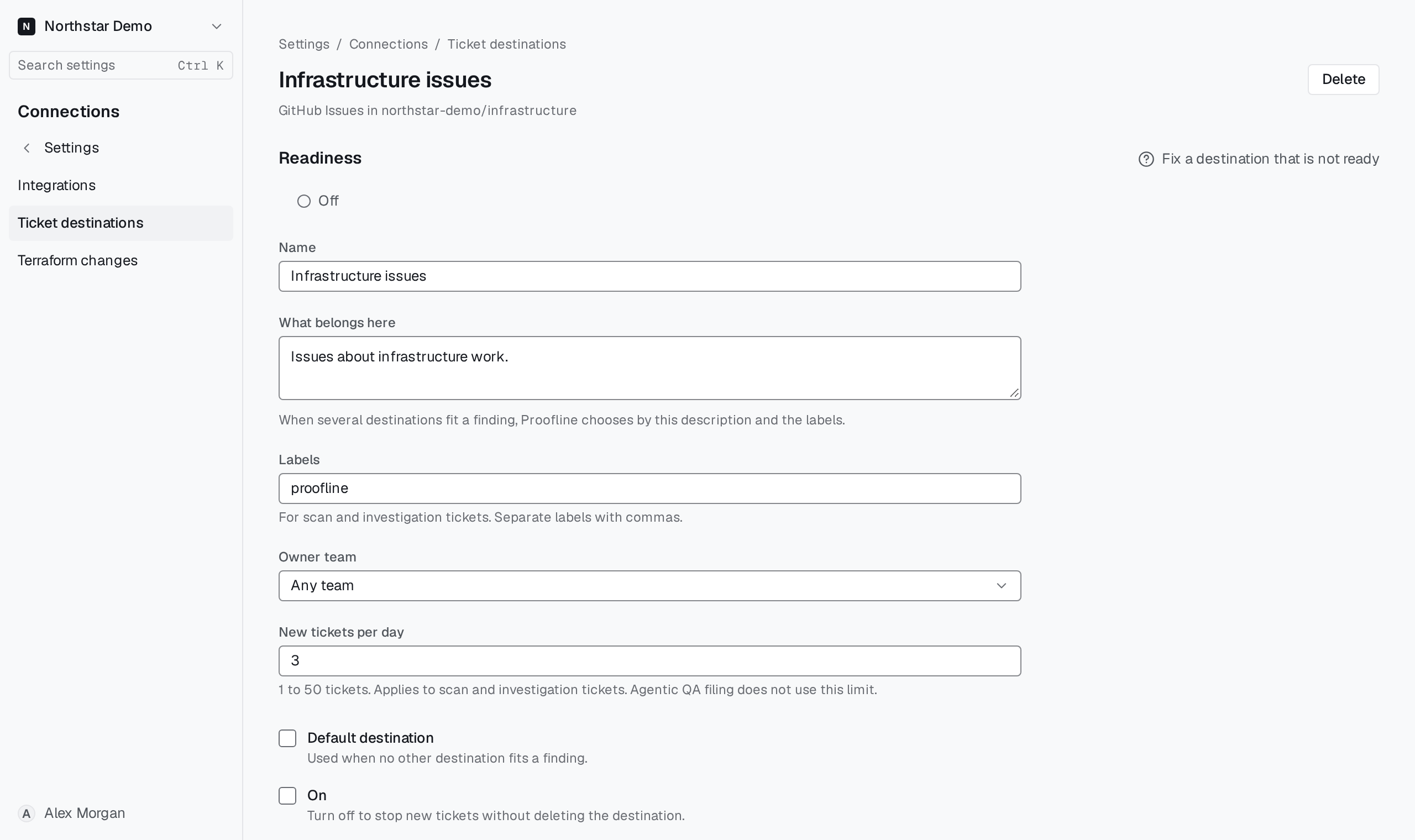
Open Settings, then Connections and Ticket destinations. A destination that needs attention shows its status beside the target. Open the destination to check its current status and settings.
Restore the destination#
- Off means the destination is turned off. Select On and Save to accept tickets again. If the target has another problem, its status appears after the destination is back on.
- Repository unavailable means Proofline cannot use the saved GitHub repository. Restore the repository's connection or the GitHub App installation's access to it. If the target changed, add a new destination for the replacement repository.
- Connection inactive means the Jira or Linear authorization for that destination is inactive. Open the provider under Integrations and choose Authorize again if the connection offers it. If you need to create a replacement connection, add a destination that uses it.
- Needs write access means the active connection lacks the permission required to write tickets. The standard Jira and Linear authorizations grant read access. For a workflow that supports GitHub Issues, use a ready GitHub Issues destination.
After you make the change, reopen the destination and look for Ready.