
Download a QA run's traces and screenshots
Download traces to see what the agent did and what the browser reported. Use screenshots to see what the run captured on screen.
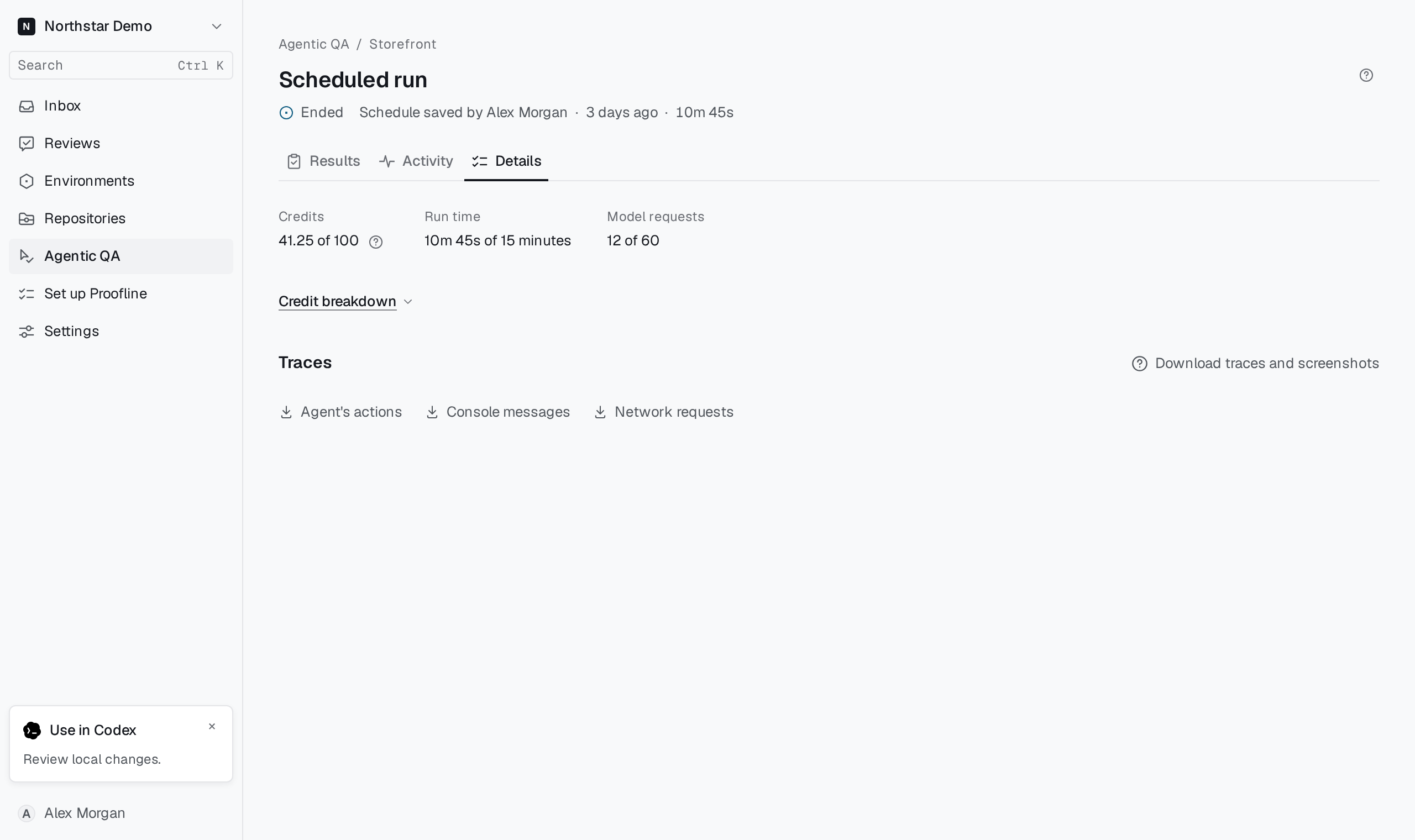
Download traces#
- In Agentic QA, open the setup and select the run under Runs.
- Open Details. Run time shows the elapsed time and includes the run's time limit when the setup revision is available. Model requests shows how many requests the run used out of the number it was allowed.
- Under Traces, select Agent's actions, Console messages or Network requests to download the corresponding file. Traces are grouped by browser. When the loaded captures come from several browsers, trace rows with browser details identify the persona, Discovery or the confirmation attempt. Use Show more if the list offers it.
An Expired capture has passed its retention period. A Deleted capture was removed. Not available means the console has no usable link to the capture. If a trace is unavailable, check the other downloads and the screenshots for what the run retained.
Open and save screenshots#
Open Activity. While the run is active, select an image under Screenshots to open it in a new tab. After the run ends, select a timeline entry with a screenshot, then select the image to open the lightbox.
Use Previous screenshot and Next screenshot, or the left and right arrow keys, to move between available screenshots. Choose Open the original to open the current image in a new tab. Use your browser's image save command in that tab. Select Close or press Escape to return to the timeline.