
Create or change a QA setup in a conversation
On New setup and Edit setup, you can tell Proofline in your own words what a setup should check. Proofline answers with a reply, a question or a proposed change to the setup. The form beside the conversation remains the setup you are about to save, and nothing is saved until you select Save setup.
The conversation appears only where Proofline has turned it on for your organization. Elsewhere, and on an archived setup, the page shows the form alone. Sending messages and saving need Manage Agentic QA.
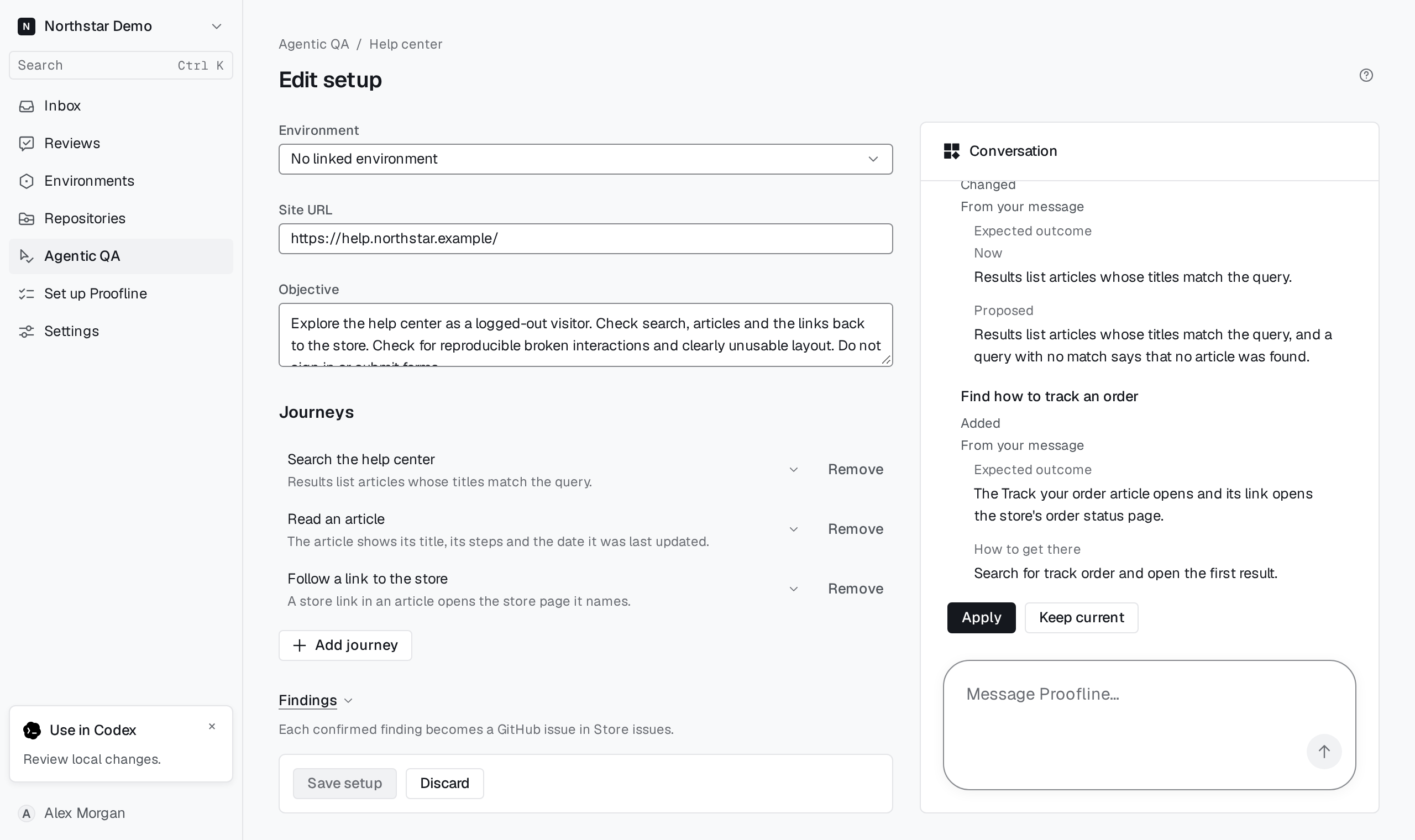
Create a setup by saying what to check#
- On the Agentic QA page, select New setup. At desktop width the conversation sits beside the form. In a narrower window, Conversation opens first and Setup shows the form.
- Read Proofline's first entry. It names the site it prepared the setup for and the files it read, each linked at the commit Proofline read. When it found several sites, it asks which one runs should open: select a site, or answer in your own words.
- In the message box, describe what runs should check, for example "Add a journey that searches for a product." Press Enter to send, or Shift+Enter to start a new line.
- Proofline answers in words, asks a question with choices, or proposes a change. Decide each proposed change before you save.
- Select Save setup. If the setup still needs something, the checklist names it and nothing is saved.
While Proofline works on a message, the conversation shows Reading your request. When Proofline cannot answer a message, the entry reads This answer failed with its reason; Try again sends the same message again.
If you save the setup in another tab, this page takes no more changes. The conversation ends with This setup was saved in another tab. and a link, Open followed by the setup's name, to the saved setup.
Change a saved setup#
- Open the setup and select Edit. The conversation's first entry names the revision you are editing and when it was saved. When the setup has a run that ended, it also says when its latest run ended and links each journey that run could not check.
- Describe the change, for example "Remove the gift guide journey."
- Decide each proposed change, then select Save setup. Saving adds a revision and keeps the earlier ones.
The edit survives a reload and shows the same in a second tab. If you leave the page, the setup's page shows Edit in progress, which returns you to it. Discard removes what you entered and the conversation's changes once you confirm, and the saved setup stays as it is.
If someone saves the setup while you are editing it, the page shows This setup changed. The conversation ends with an entry that says when the newer revision was saved and that your changes are not saved. Until you load it, the message box takes no message and each undecided change reads Proposed for an earlier version. Load the current setup opens the latest saved revision and replaces what you entered here.
If someone saves the schedule while you are editing it, the schedule says so. Load the current schedule replaces your schedule entries with the saved schedule.
Read a proposed change#
A Proposed change lists only what it would change, in the form's order:
- Objective, and a name when you asked for one, show the value Now and the Proposed one.
- Video, when you asked to turn video on or off, shows Off or On for Now and Proposed.
- Confirmed findings, when you asked how they are filed, shows File automatically or Hold a draft for Now and Proposed.
- Longest run and Allocation for one run, when you asked to lower a run's limits, show both limits Now and Proposed.
- Schedule, on a saved setup when you asked to change it, shows the schedule Now and Proposed, and Next occurrence says when the proposed schedule would start its next run.
- Under Journeys, each journey the proposal touches is marked Added, Changed or Removed. An added or changed journey says where its expectation came from: a repository file at a commit, or From your message. A changed journey shows only the fields that change, each with Now and Proposed.
- On a saved setup, a removed journey that has findings says that runs stop checking it and that its findings stay on the setup.
- New order lists the journeys in their proposed order when the proposal moves them.
- Suggestions left out names any part Proofline dropped, such as a journey on an address outside the sites Proofline found for the setup.
A proposal changes only the objective, the journeys and, when you ask, the name, whether runs record video, how confirmed findings are filed, the schedule, or lower run limits. It grants nothing. It cannot add a site, a form, a test login or a findings destination, raise a limit, or change a video's length or size, so no message widens what a run may do. A journey the conversation adds runs logged out until you choose a persona under its Runs as.
Apply, keep or undo a change#
- Apply writes the change into the form. It saves nothing.
- Keep current leaves the form as it was.
- Undo appears on the latest change you applied and puts back what the fields held before it. It stays only until the form or the conversation changes again: your next edit, message or decision removes it.
A decided change reads Applied., Kept current. or Undone., and it cannot be decided again. If Proofline refuses an Apply, both buttons stay and the reason appears under them.
A field that an applied change wrote shows Changed after its label: the objective, the name, Record video of each run, how confirmed findings are filed, a run limit, the schedule, or Journeys when the change removed or reordered journeys. An added or changed journey shows Added or Changed under its title. Each mark links to the change that wrote it. Editing the field yourself clears its mark, because the value is then your own.
Set what the conversation leaves to the form#
When you ask for one of these settings, Proofline replies with a link to the field instead of proposing a value.
| Setting | Where you set it |
|---|---|
| Target | Site URL, or a site listed under Site with Another URL for one not listed |
| Other sites | Advanced → Other sites a run may open (Allow a QA journey to open another site) |
| Forms | Advanced → Forms a run may submit (Allow a QA run to submit one form) |
| Higher limits | Advanced → Longest run and Allocation for one run |
| Test logins | Configuration → Test logins on the saved setup's page, then the journey's Runs as (Give a QA journey a test login) |
| Destination | Findings → Destination |
| Schedule | Edit → Advanced → Schedule on a saved setup (Schedule QA runs in a local time zone) |
| Video | Record video of each run on a saved setup, with Longest video and Largest video under it |
Test logins, the schedule and video belong to a saved setup, so on New setup Proofline asks you to save the setup first. It also points to Schedule for a schedule it cannot propose, such as two times a day. When you edit a saved setup whose runs can record, Proofline can propose turning video on or off. Where they cannot, it points to Video and says why. Do not type a password into a message: Proofline stores a message that gives or asks for a credential without the credential and points you to Test logins.
A conversation takes up to 40 messages, and a message whose answer failed does not count. When it reaches them, the message box gives way to a note: change the form by hand, or save the setup. A new setup's conversation continues from Edit setup once you save, and a saved setup's next edit starts a new conversation.
Your organization also has a daily allowance of conversation requests. When it is used up, the note says when you can send again, and the message box returns at that time.
Follow a conversation without Manage Agentic QA#
With Operate Agentic QA, you can read a setup conversation that someone has open. On the Agentic QA page, select View setup conversation for a new setup, or Edit in progress on a saved setup's page. You see the messages and how each change was decided, but you cannot send a message, decide a change or save. When no conversation is open, New setup says No setup preparation is open.