
Test an environment's deployed site with Agentic QA
Link a QA setup to an environment and choose the deployed site where its runs should start. On New setup, Proofline can suggest site URLs reported by successful GitHub deployments linked to that environment.
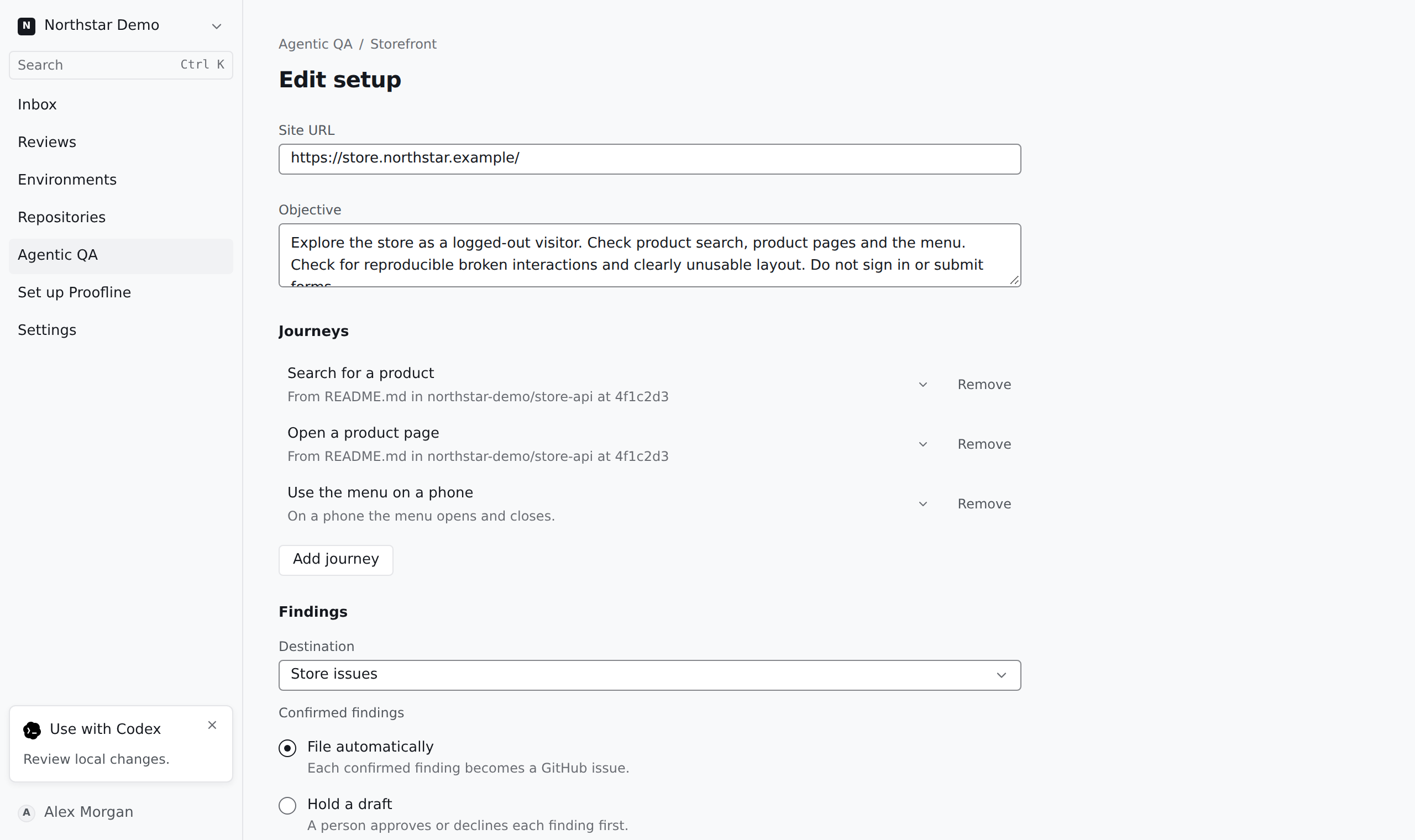
Choose a deployed site#
- In Agentic QA, select New setup.
- Under Environment, select the environment instead of No linked environment. Proofline prepares the setup again. It can offer the URL from the most recent successful deployment with a reported URL for each linked repository and GitHub Environment.
- If several sites appear under Site, select the one you want to test. If the deployed site is missing from the list, open Another site and enter it under Another URL. When the form shows Site URL instead, check the address there and correct it if needed.
- Select Save setup when the setup is ready.
For a saved setup, select Edit, choose the environment, and enter the deployed address under Site URL. Changing Environment in the editor leaves the site address as it was, so check both before you select Save setup.
When there is no environment to choose#
The Environment field appears when the organization has an environment. If you ask to set one in a new setup conversation and none exists, Proofline shows Connect an environment before choosing one for this setup. Set up an environment and link its repository before choosing it here. You can also use a public site URL without linking an environment.