
Read an audit event's detail page
Open an event in the Audit log to see who acted, what the action affected and which values the event recorded.
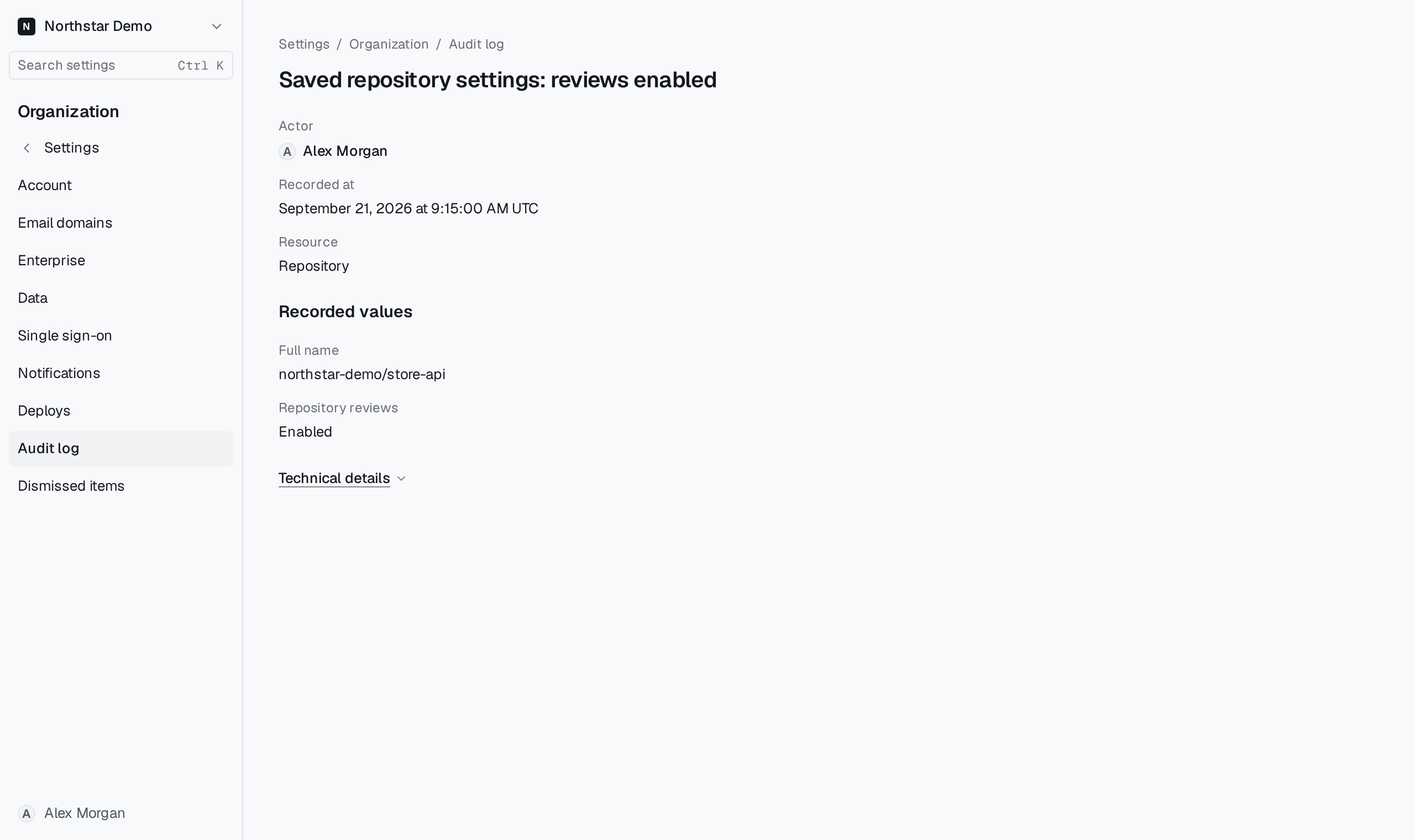
Read who acted and when#
Select the event's action in Settings → Organization → Audit log or in the enterprise's Audit log.
- Actor identifies the person, provider identity or system that took the action. System appears when the event records no actor identity.
- Authorized by appears when an audit cadence fires and the event names the administrator who authorized it. In that event, Actor is System.
- Recorded at shows when the event was recorded, in your browser's local format. An enterprise event also shows Organization when its name is available.
Follow the affected resource#
Resource names the kind of object affected. An organization event that links to a finding or review run has a Finding or Review run row. Use View finding, View review run or View audit report when the event offers one.
- Repository can show the recorded repository name. For an issue enrichment change, it opens the repository's Issues settings when the repository is still available. The event can show the recorded name alongside a newer name.
- Environment shows the environment name the event recorded.
- Delivery target appears on a gate requirement event that identifies the target and opens the target's requirements from the organization view.
- Pull request appears when the event recorded its repository and number. Follow the link from the organization view to open the pull request in Proofline.
Enterprise events show the recorded resource information. If you have access to the organization, open its audit log to follow the event's organization links.
Compare recorded values#
When an event contains both snapshots, Changes lists the fields that differ. Read Before for the earlier value and After for the value saved by the change. Not set means the recorded value was null or absent. If the snapshots agree, the section says No recorded configuration values changed.
An event with a single snapshot shows Previous values or New values. Look under Recorded values for other context the event holds. Compare the event with the current setting to see whether a later action changed it again.