
Read your Inbox as a member
As an organization member, your Inbox shows proposed gate requirements, setup notices and rate limits without administrator tasks.
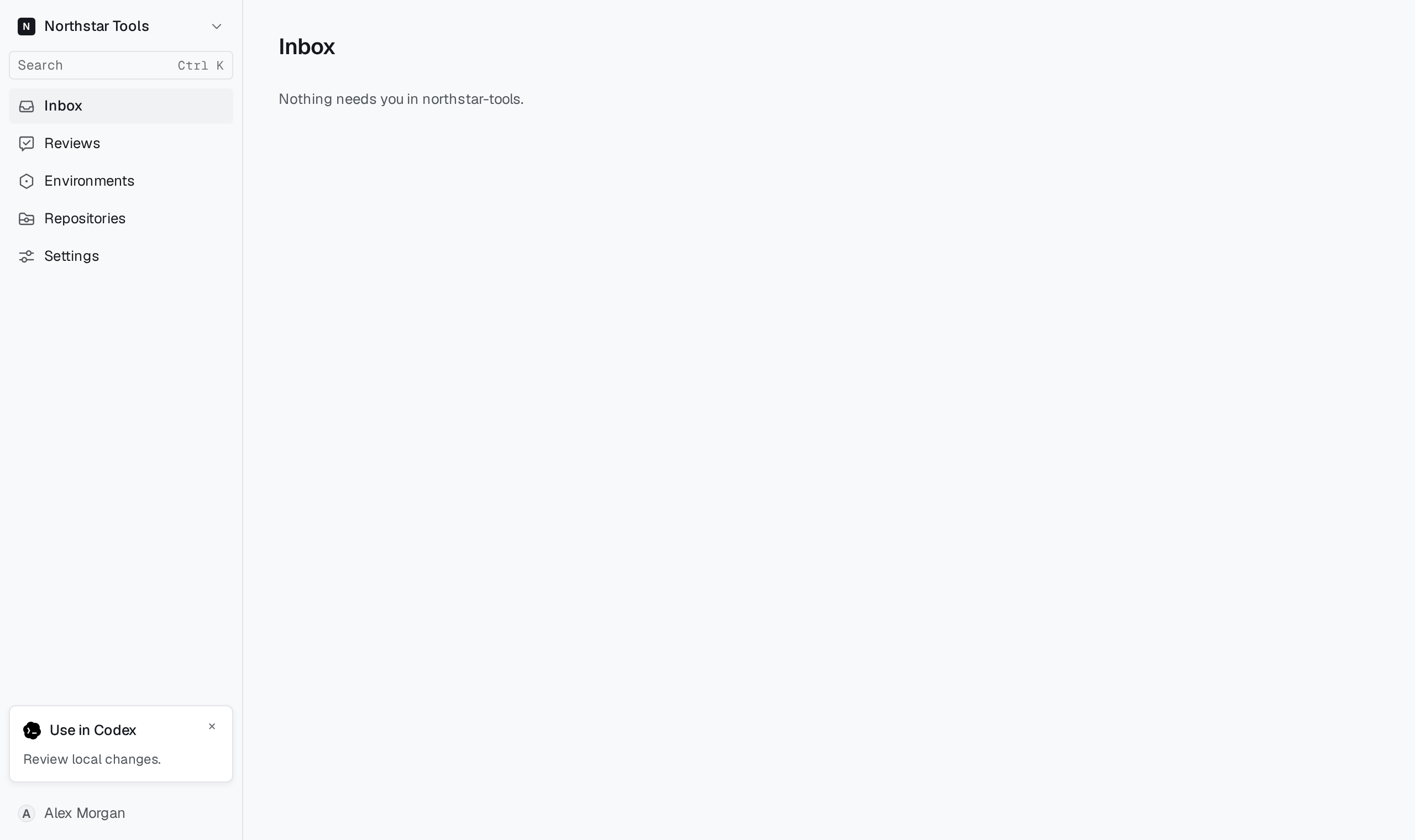
Installation and empty states#
When an organization has connected Proofline but has not finished onboarding, the Inbox title reads Complete Proofline installation. The empty state displays Proofline is not installed in this organization yet and explains that reviews start once an organization administrator finishes setup. Ask an administrator listed under Settings → Organization → Account to complete installation.
When all items are resolved or dismissed, the Inbox displays "Nothing needs you in <organization>." An empty Inbox does not mean the organization has no infrastructure gaps; administrator setup tasks for cloud connections, telemetry and deploy verification appear only on administrator Inboxes.
Outside collaborators also see "Nothing needs you in <organization>", because gate requirements and environment setup tasks are reserved for organization members.
Gate requirement rows#
Under What needs attention, members see Review gate requirements rows for repositories they can access when a delivery target holds a proposed gate requirement that nobody has confirmed or dismissed.
Select the row to open the delivery target's page to inspect the proposal. Confirmed requirements that could not be checked and identities that Kian could not name appear only to organization administrators.
Dismiss and restore items#
You can hide rows that you do not need on your screen:
- Select the dismiss button (×) beside any gate requirement row to remove it from your Inbox. Dismissing hides the row only for your account; other members still see it. A dismissed item returns if its condition gains new members, such as another repository.
- When you have dismissed items, the button Dismissed items appears at the bottom of the Inbox. Select it to show the Dismissed section.
- Select Restore beside an item to return it to your active Inbox. If all dismissed items have been restored, the screen displays "No dismissed items."
- Select Back to Inbox to return to your active items.
GitHub rate limits#
When GitHub's rate limit holds reviews, the notice GitHub's rate limit is reached displays the number of waiting reviews and the reset time. Select × to dismiss this notice; it returns if a new reset time is recorded.