
Read the All organizations list
The organizations list at /orgs displays every organization you can open, with your role, setup state and enterprise groupings.
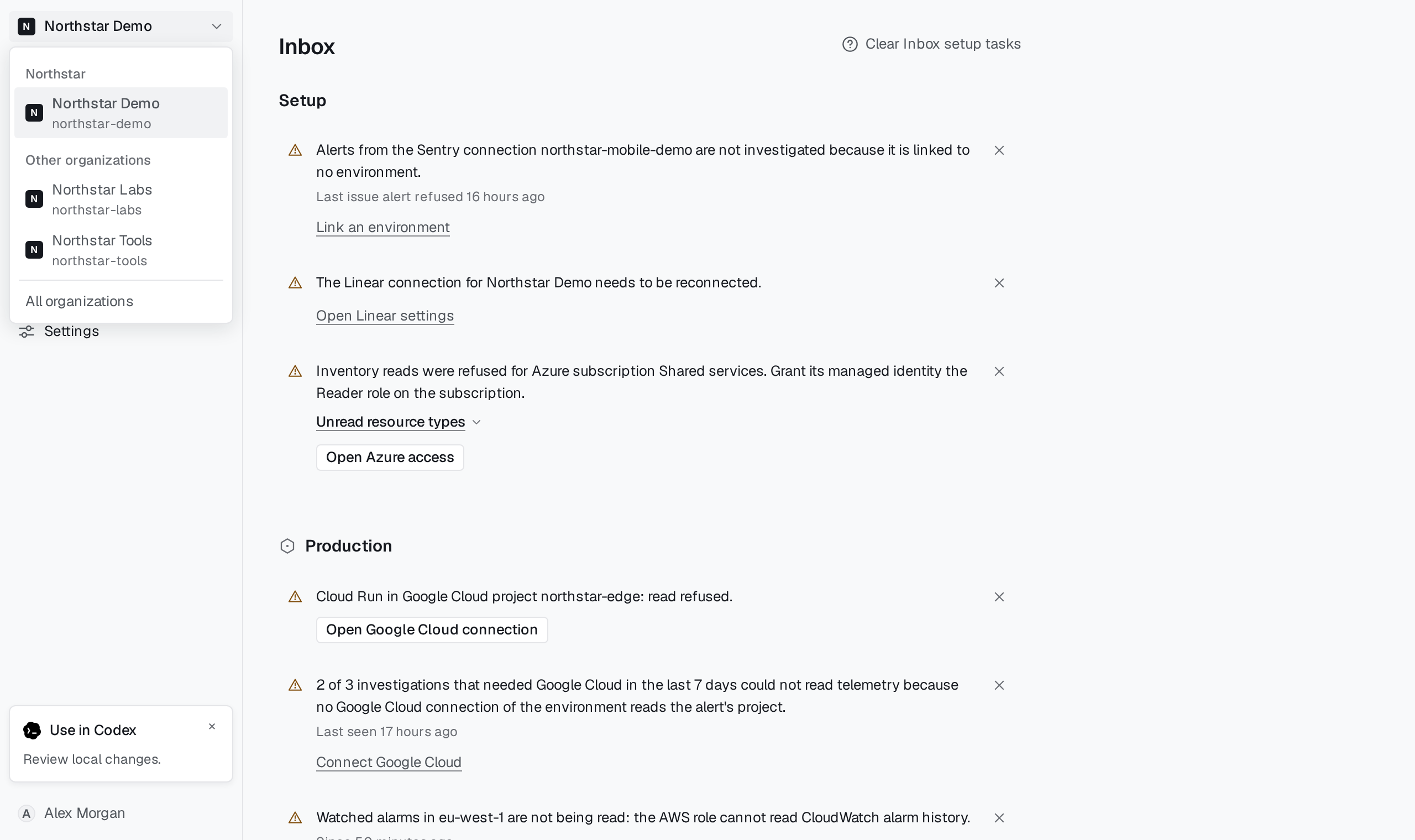
Read enterprise sections and groupings#
The page groups organizations according to their enterprise links:
- Enterprise sections: Organizations linked to an enterprise appear under their enterprise name. If you administer that enterprise, the section heading includes Manage enterprise to open its organization settings.
- Other organizations: Organizations without an enterprise link appear under the heading Other organizations when your account belongs to both linked and unlinked workspaces. When none of your organizations have an enterprise link, the list shows all workspaces together without section headings.
- Enterprises: If you administer an enterprise that contains no organizations you directly belong to, this section lists it so you can open enterprise administration.
- All organizations: Platform administrators see an additional directory of organizations outside their personal memberships.
Read workspace row details#
Each organization row displays:
- Organization name and mark: Shows the organization display name or GitHub login, along with secondary login details when they differ.
- Your role:
- Owner: You hold administrator access in the organization.
- Member: You are a member with standard workspace permissions.
- Outside collaborator: You have repository-scoped access without organization-wide membership.
- Setup state:
- Setup not finished: The organization has not completed initial configuration.
- Setup items needing attention: Displays the count of open setup items when initial setup is complete but tasks remain for administrators.
- When setup is complete with no open items, or for outside collaborators who have no setup to complete, no setup text appears.
- Status dot: Appears beside the role when an organization's status is not active, such as when suspended or in read-only maintenance.
Select any row to open that organization's workspace.
Pending installation requests#
If you requested installation in an organization where you are not an owner, a waiting card at the top of the list shows Installation requested for <organization> (or Installation requested), noting that it waits for a GitHub organization owner to approve.
Select Dismiss to withdraw an outstanding installation request.
Use Add organization (or Install the GitHub App if no organizations are connected yet) to install Proofline on another GitHub organization or personal account.