
Recover when the console cannot open a page
When a network issue, missing address or release update interrupts the console, reload the current version or return to active navigation.
Understand console error screens#
The console displays specific notices depending on where the error occurred and whether your browser has current code.
Proofline could not open this page#
This screen appears when an unhandled error occurs while opening a route or retrieving page data.
- Inside an organization workspace, the shell and sidebar stay in place. The page explains that the address may be temporarily unavailable while the rest of the console remains usable.
- Outside an organization, the notice explains that the address may be outdated or temporarily unavailable.
- If a GitHub rate limit stopped the request, the error details describe the waiting period.
Select Try again to reload the page in your browser. Outside an organization, select Open the console to return to the home screen.
Select Technical details to expand the recorded error message. Beneath the technical details, select Copy to place the diagnostic text on your clipboard to share with your team or Proofline support.
Proofline was updated while this page was open#
This notice appears when a new Proofline release replaces the script modules your open tab was trying to load.
- If you navigate to a new route, the console attempts to reload automatically once per minute. If the reload does not start, the page displays Proofline was updated while this page was open with the message "Reload to continue on the current version. What you already saved is kept."
- If an individual section within an open page was removed or replaced by an update, an inline warning displays Proofline was updated while this page was open and notes "Reload to show this part of the page." Your unsubmitted form inputs on the rest of the page remain intact.
Select Reload to refresh the document on the current release.
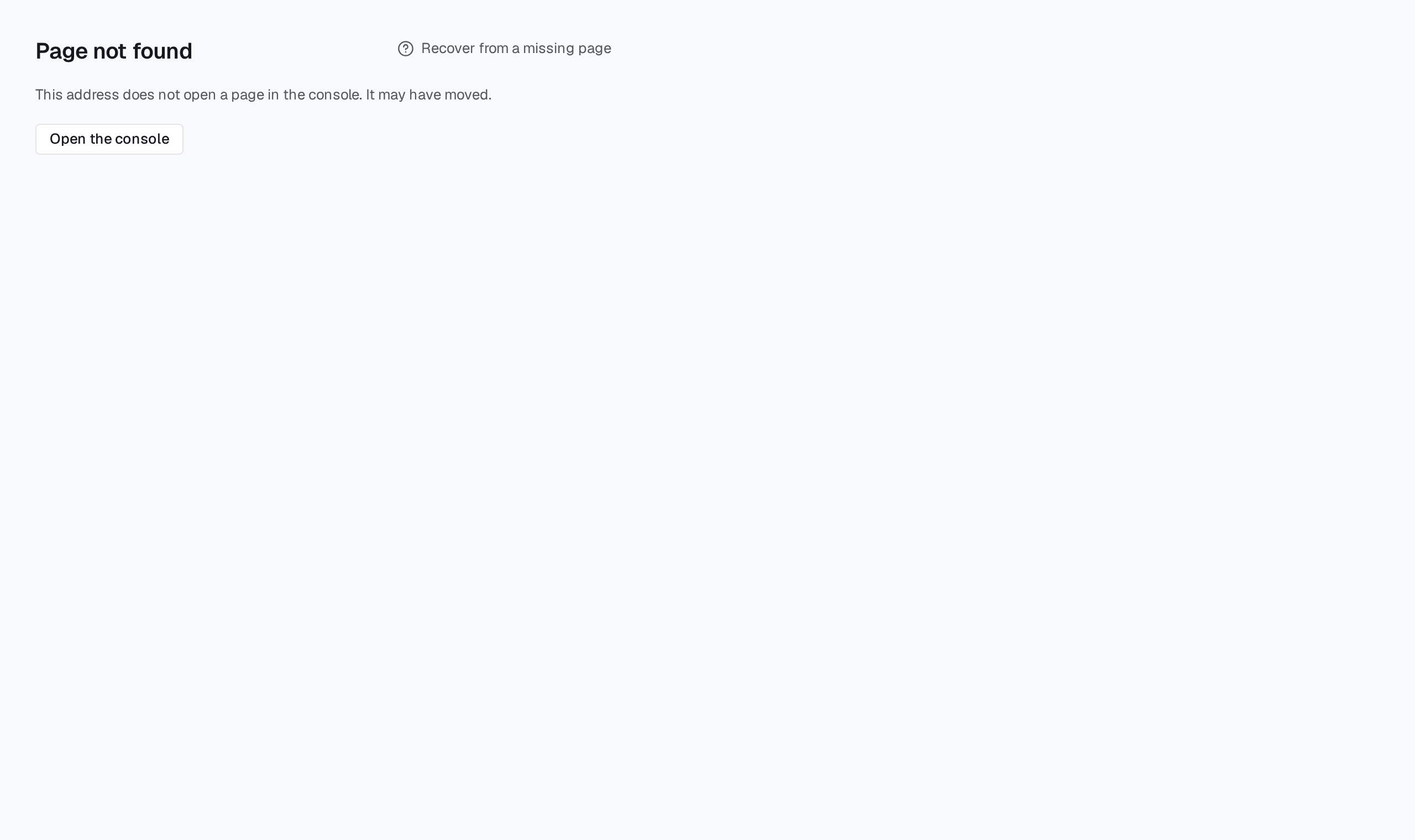
Page not found#
This screen appears when navigating to an address that does not match an active console page.
- Inside an organization, the sidebar stays in place and the notice states that the page may have moved. Use the sidebar to continue navigating.
- Outside an organization, the standalone screen explains that the address does not open a console page. Select Open the console to return to the home screen.
Organization not found#
This screen appears when an organization path in the URL does not exist or your account has no access to it.
The page displays "This organization does not exist or you do not have access to it." Select Choose an organization to open the organization list at /orgs. See Read the organizations list to find a workspace you can open.
Repository unavailable#
This message appears on a repository page when the repository detail query fails.
The breadcrumb trail showing Repositories or Reviews remains visible above the Repository unavailable heading. An error note below explains the failure. Use the breadcrumb links or the sidebar to navigate to other repositories or reviews while the connection recovers.