
Check a proposed prevention rule's evidence before adding it
Open Scope and evidence on an Inbox proposal to check what the rule would cover and what the investigation established.
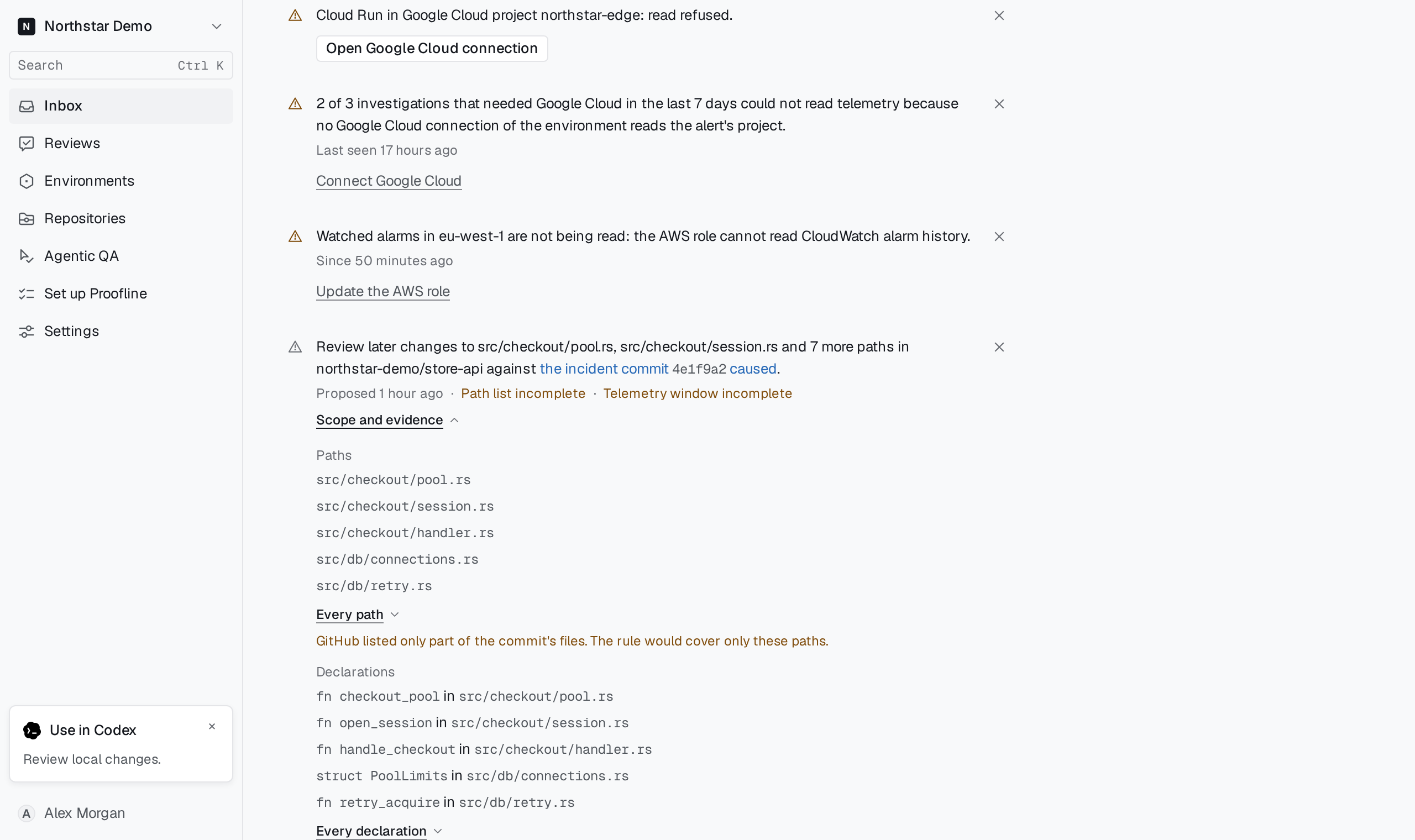
Check what the rule would cover#
Find the proposal marked Needs a decision under the incident's environment. Follow its link to open the investigation, then expand Scope and evidence on the proposal.
| Field | What to look for |
|---|---|
| Paths | The changed files the proposal would cover. If Path list incomplete appears, GitHub returned only part of the commit's files. Check which paths the proposal actually names. |
| Declarations | The changed symbols and their file paths, when the proposal lists them. Use them to check which code changes the proposal describes. |
| Environment condition | The cited configuration changes, serving revisions or inventory reads. If the investigation cited no Kian record, the field says so. |
| Telemetry | The incident onset, when recorded, and each cited provider window. Check the source, time and any note that the provider covered only part of the window. No telemetry window means the investigation cited none. |
| Stops applying | The configuration records that can cause the rule to lapse when a later review sees a change or removal. If the investigation cited no record that can end the rule, it applies until an administrator retires it. |
Decide whether to add the rule#
An owner of the GitHub organization or a Proofline platform administrator can add the rule from the console.
If the rule fits the evidence and the paths you want it to cover, select Add review rule. If Choose the rule's paths opens, enter the patterns you want under Path patterns, one per line, then select Add review rule in the dialog. Proofline opens the saved rule for the repository and the incident's environment. If the proposal should be withdrawn from the Inbox, select Dismiss and enter the reason.