
Read each part of an environment's Production loop
Open an environment's Overview and find Production loop to see what Proofline has recorded for alarms, deploys, scans and weekly reports. Follow the link on the affected row when it offers a setup step. Some setup messages are visible only to people who can act on them.
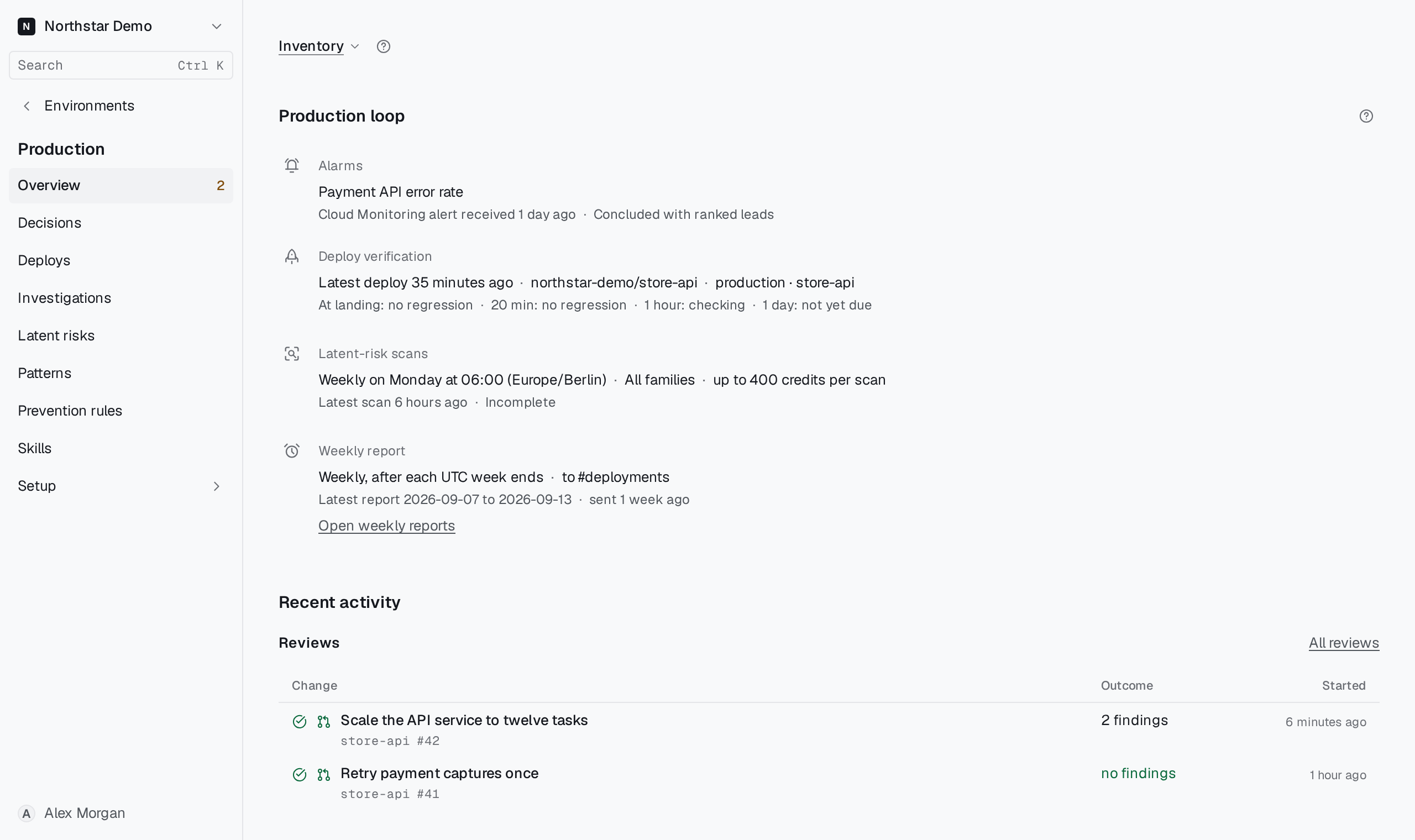
Alarms#
If there is no saved watch, no latest alert and no other source set up to receive alerts, administrators can follow the repair on the row. When AWS is linked, the row offers CloudWatch setup. Otherwise, it can offer webhook setup for a linked subscription or project.
| Message | What to do |
|---|---|
| Not set up: the read role cannot read CloudWatch alarms. | The linked AWS alarm scopes returned an access refusal. Use Update the AWS role or Update the AWS roles, then use Set up alarms to choose what to watch. |
| Not set up: no CloudWatch alarm is watched. | AWS is linked but no alarm is selected. Use Set up alarms. |
| Not set up: no alert webhook receives Azure Monitor alerts. | The linked Azure subscription needs an alert webhook. Use Set up alarms to open Azure setup. |
| Not set up: no alert webhook receives Cloud Monitoring alerts. | The linked Google Cloud project needs an alert webhook. Use Set up alarms to open Cloud Monitoring setup. |
For a saved CloudWatch watch, check when the last read completed. If reads stopped, follow Set up alarms to address the reason. Use Change alarms if a watched alarm is missing, or Turn on alarms if intake is off. CloudWatch alarm forwarding is configured. means forwarding can deliver alarms here. No alarm has arrived. means there is no alert recorded for this row. If the watch or latest investigation is Unknown, read the error for the failed request.
Select the latest alert's name to read the investigation and the evidence it cites. Concluded with a likely cause identifies a supported candidate. Concluded with ranked leads gives you candidates to check in order. Concluded without a lead means the evidence yielded no candidate. Not concluded yet means the investigation is still running. Ended without a result and No run recorded leave you without a recorded conclusion. Cancelled before it finished and Stopped after repeated failures can still show leads from the partial investigation.
A counterexample on a fix re-check means fresh evidence still shows the requirement was violated. Open the fix to read its re-check result.
Deploy verification#
Not set up: no signal is watched after a deploy. appears to people who can add a signal when the environment has checks on and no signals or ECS rollouts configured. Use Set up deploy verification. If the environment checks whether its ECS rollouts finish, the row offers Add a signal. If Checks for new deploys are off. appears, use Deploy checks to change that setting. Checks that already started can finish.
If the window has no recorded deploy, follow any link to fix GitHub deployment status reporting or the GitHub Environments being watched. Unknown: the latest deploy could not be read. points to the failed read under Services. Other Unknown messages can mean a saved check result is unreadable or the window contains too many deploys to count. These gaps leave the latest deploy unknown.
When a deploy is recorded, use Read a deploy's verification to interpret its checks or a release that deployed several programs.
Latent-risk scans#
Not set up: no enabled schedule scans this environment. appears to people who can schedule scans. Select Schedule scans to choose when and what to scan and set the credit ceiling. The row shows the enabled schedules and the latest scan you can see. Still running means the scan is underway. Deferred means the previous scan was still running when the schedule fired. Refused for funding means the scan did not start. Open Latent risks to inspect the result, including an Incomplete scan or one with No result. If No scan has run yet. appears, check the next scheduled time.
Weekly report#
Not set up: the weekly report is off. appears to administrators. Use Turn on the weekly report to enable it. Enabled reports run after each UTC week ends. Open weekly reports takes you to the schedule and retained reports.
- If Slack is disconnected, reports stay in the console. Use Connect Slack to set up delivery. If Slack is refusing delivery to the named channel, use Repair Slack. An Unknown destination means Proofline could not read the Slack connection.
- Select the date range under Latest report to open the retained report. A sent time records Slack delivery. Slack delivery not confirmed means the report has no recorded delivery timestamp.
- No report has been retained yet. means there's no saved report to open. If the schedule or report says Unknown, read the error and select Open weekly reports if offered.